Configuration - Customer Profiles
- Perry Tew
- Hunter Schaeffer
- Loyd James (Unlicensed)
Customer Profiles
If your customers make periodic purchases from your online store, you can enable customer profiles to help speed up the checkout process. Customer Profiles allow your customers to optionally enter a password, and store their information on the UltraCart servers. When they make their next purchase, they can allow UltraCart to automatically pre-populate the checkout form by using their e-mail address and the password they specified.
Access the main Customer Profiles Menu:
Enable Customer Profiles
To enable Customer Profiles, navigate to (settings configuration):
There are 4 options with customer profiles section; Enable Customer Profiles, Require Customer Profile, Allow Customer Profiles to Store Credit Card(s)and Limit Checkout Address Book to Last # Entries. Check the box to the left of the choices desired.
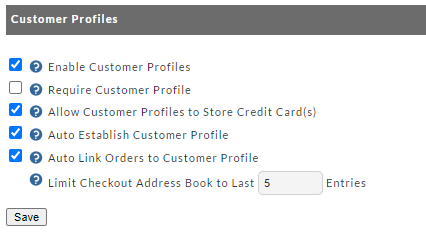
| Field | Description |
|---|---|
| Enable Customer Profiles | If selected, the multi-page checkout will include a customer profile screen directly upon the customer clicking on the "Checkout" button in the shopping cart. SinglePageCheckout does not include Customer Profile Please note that the Single Page Checkout does not support the Customer Profile creation/login process. |
| Require Customer Profile | If selected this will remove the "Guest checkout" option from the Customer profiles checkout screen. the customer will either need to create a customer profile or log into an existing customer profile. |
| Allow Customer Profiles to Store Credit Card(s) | If selected, this will allow the customer to store their credit card data (PCI compliant hashing of the Credit Card number details is automatically applied) for us with future orders. CVV2 Requirement If you enable this option, it is important that you configure your gateway to allow processing of transaction without the CVV2 number being present. For PCI compliance reasons we can not store the CVV2 number with the customer profile stored credit card. If you fail to configure your gateway properly, the transaction will fail. UltraCart will still enforce the collection of the CVV2 number on regular credit cards and the gateway will still check the number that is presented to them. Please contact your gateway's customer support department for details on how to properly configure your gateway for this scenario. |
| Auto Establish Customer Profile | A customer profile will be established for the customer upon their order if one does not exist. (*The profile will not have a password and the customer will have to perform an email verification profile to set the initial password down the road.) |
| Auto Link Orders to Customer Profile | If enabled, any order placed will automatically link to a customer profile by email. The order will not receive special pricing as if they had logged into the profile, but will be linked for historical purposes. |
| Limit Checkout Address Book to Last __ Entries | If configured (not left blank) the customers billing and shipping addresses will be limited to the specified number of entries. |
Manage Customer Profiles
You can later edit these profiles by navigating to:
My Account (Customer Portal)
These actions control the behavior of the customer portal where customers may view their order history, make reviews, etc. (See also: My Account Customer Portal)
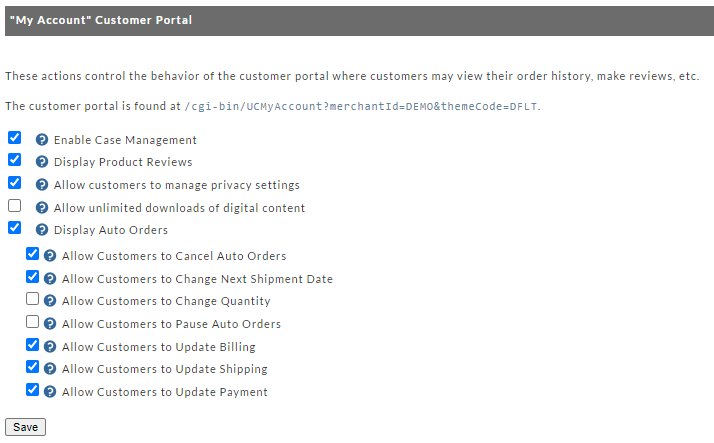
| Field | Description |
|---|---|
| Enable Case Management | Enables Case Management. Please see Case Management documentation for more details. |
| Display Product Reviews | If enabled, product reviews will be displayed in the My Account Customer Portal. See Reviews for more details. |
| Allow customers to manage privacy settings | Provide an option for customers to manage their privacy settings via the MyAccount portal. See My Account Customer Portal for more details. |
| Allow unlimited downloads of digital content | Allow the customer to download their digital content as long as they are logged into their MyAccount portal. *This setting will override the default Digital Delivery settings for downloads. |
| Display Auto Orders | If enabled, auto orders will be displayed. The following optional permissions that can be configured for auto orders:
|
Wholesale Signup
This section provides a text box whereby merchants can enter their Wholesale Agreement that will be presented to prospective wholesale customers during signup. Navigate to:
Home → Configuration (Checkout) → Customer Profiles (Settings) → Wholesale Signup (section)
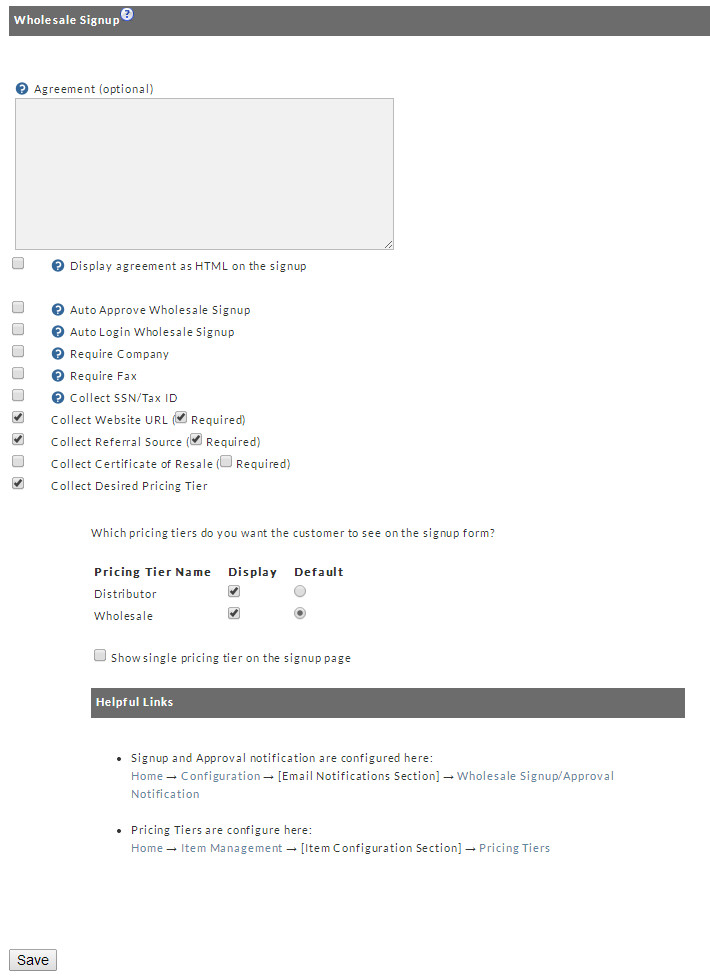
Simply enter your text in the text box provided. To require your prospective Wholesale Customer to enter their SSN or Tax ID, click the checkbox to the left of the "Collect SSN/Tax ID" prompt. Click the "Save" button when finished
Single Signon
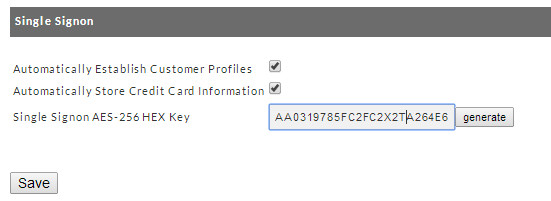
Single Signon is an advanced configuration option available to merchant that have SalesForce integration with their UltraCart account.
For more details, visit: Customer Profiles Single Signon
Wholesale Login/Logout/Signup Redirects
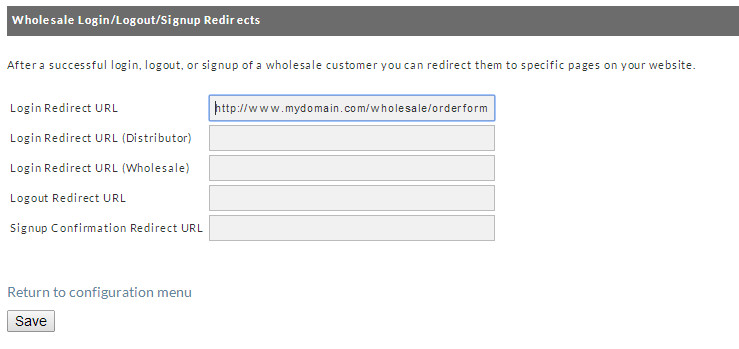
After a successful login, logout, or signup of a wholesale customer you can redirect them to specific pages on your website.
Wholesale Related Links for Web Site
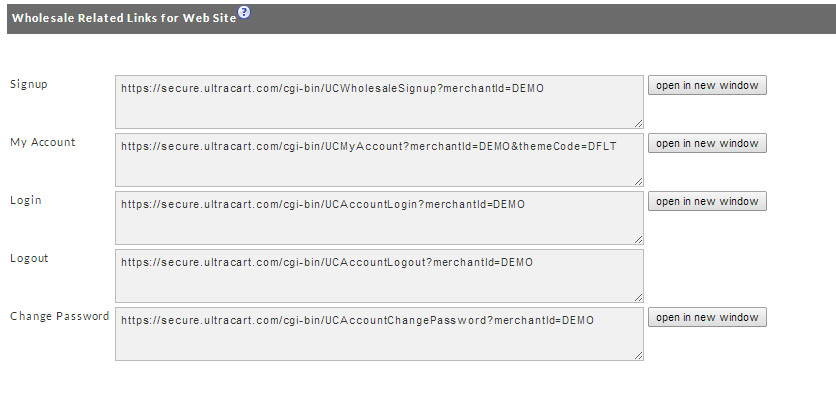
When using these links with custom SSL sites (i.e secure.mystore.com instead of secure.ultracart.com), you may wish to add some helper parameters to the links.
- OVERRIDECATALOGURL - instructs UltraCart to use the provided url instead of whatever it finds in the system when redirecting to your catalog.
- OVERRIDECONTINUESHOPPINGURL - instructs UltraCart to use the provided url instead of whatever it finds in the system when redirecting to the "continue shopping" page.
Be sure to use url encoding. There are many free sites that will do the encoding for you. At the top of the google search currently is http://meyerweb.com/eric/tools/dencoder/.
Example using secure.mystore.com with merchant id of DEMO:
<a href='https://secure.mystore.com/cgi-bin/UCAccountLogin?merchantId=DEMO&OVERRIDECATALOGURL=https%3A%2F%2Fsecure.mystore.com&OVERRIDECONTINUESHOPPINGURL=https%3A%2F%2Fsecure.mystore.com'>Login</a>
<a href='https://secure.mystore.com/cgi-bin/UCAccountLogout?merchantId=DEMO&OVERRIDECATALOGURL=https%3A%2F%2Fsecure.mystore.com&OVERRIDECONTINUESHOPPINGURL=https%3A%2F%2Fsecure.mystore.com'>Logout</a>
<a href='https://secure.mystore.com/cgi-bin/UCWholesaleSignup?merchantId=DEMO&OVERRIDECATALOGURL=https%3A%2F%2Fsecure.mystore.com&OVERRIDECONTINUESHOPPINGURL=https%3A%2F%2Fsecure.mystore.com'>Signup</a>
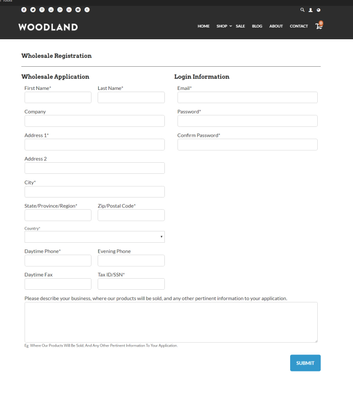
Wholesale Signup Link
This link would typically be placed on your website wherever you showcase your wholesale program. It would have some verbiage to encourage the prospective customer to "Click Here to Signup". The following is an example of UltraCart's Wholesale Signup screen (application) with minimal screen branding:
Wholesale Login Link
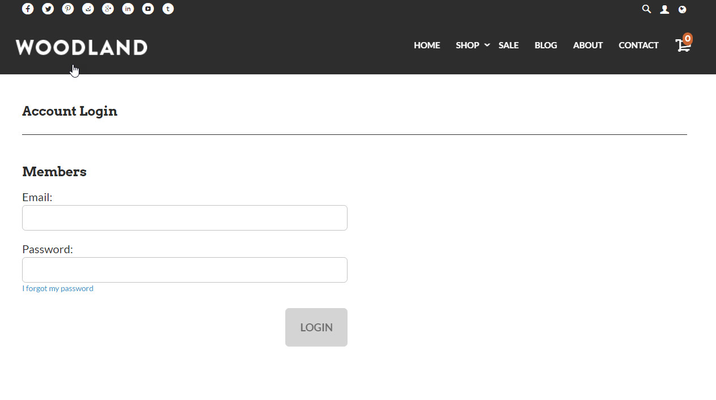
On a different screen or possibly on the very same wholesale screen, merchants will place their Login link. This allows existing Wholesale Customer to login and be taken to the merchant's wholesale screen that displays all the Wholesale items, prices for Wholesale Orders.
Wholesale Logout Link
The Logout Link could also be placed on the merchant's Wholesale page. This link will take the customer to the URL specified in the Store URL field at Configuration > Merchant Profile.
Related Documentation