User Configuration Screen
- Perry Tew
- Hunter Schaeffer
- Former user (Deleted)
The user configuration page is where you configure the contact/login details of a user, update passwords for the user, as well as the user permissions and email notifications
Home Menu → Configuration (Back Office) → Users > Add or Edit user
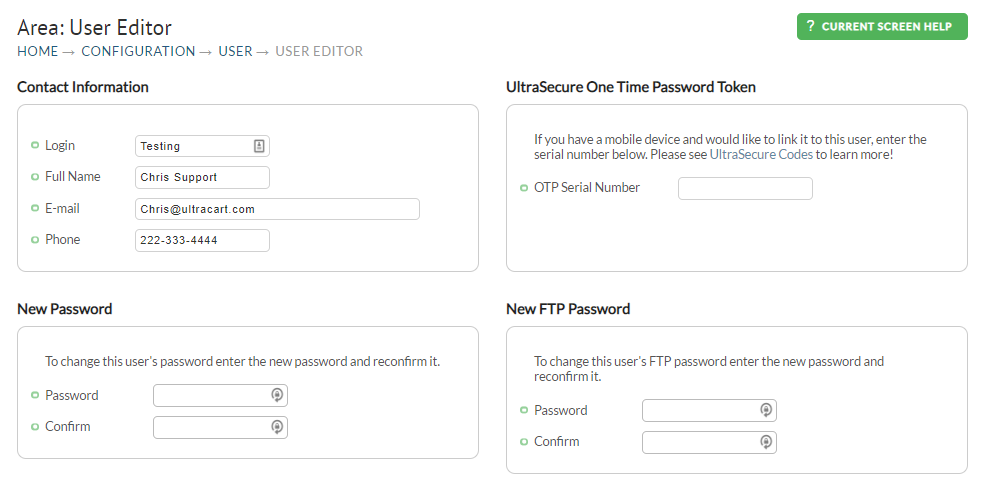

User Configuration Introduction
There are six sections that can be configured for each user. This includes:
Section | Description |
|---|---|
Contact Information | Mandatory Fields that can only seen by you and UltraCart staff |
| New Password | You only need to populate these fields for new passwords. The are intentionally left blank the rest of the time. A secure password should contain both letters and numbers and not contain an English word or easily guessable value. |
| New FTP Password | You only need to configure this if you are going to use UltraCart's FTP. FTP: merchantftp.ultracart.com User ID: <Your Merchant ID>/<Your Login ID>, Example: DEMO/johna Password: Whatever you fill in the New FTP Password field. |
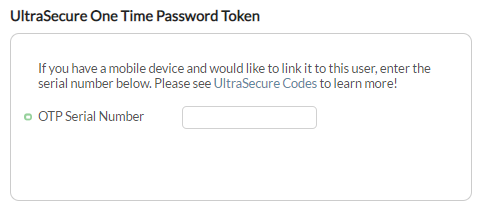
| UltraSecure One-Time Password Token | You only need to configure this if you are going to use UltraSecure. A secure password should contain both letters and numbers and not contain an English word or easily guessable value. This password will need to be different then your main account password. |
| Permissions | Please spend some time considering how to set these up. There could be security risks to your company if you are not careful with who has access to what areas of UltraCart. |
| Email Notifications | Email Notifications are what are sent to you when certain actions take place in your account. These are not for your customer, but for your information only. |
Contact Information
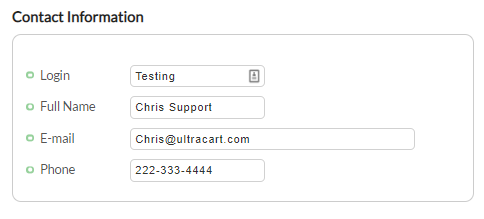
The contact information applies to this individual user only. It is very important that you configure each user with correct names and emails for obvious reasons. When a user contacts support via phone or email regarding account information, our support personnel will use the information entered here to help make accurate identification.
Field | Description |
|---|---|
| Login | In the login field, enter the user's first initial and last name. If there are very few users, then first names only are acceptable. This will be the login name that the user will use to access their account. |
| Name | Please enter the full name of the user. |
| Please enter the email address used to contact this user. It is very important to make sure this field is correct and a valid email. | |
| Phone | Please enter the phone number used to contact the user. |
New Password
This section allows you to set a secure password for the new user or change the password for an existing user. 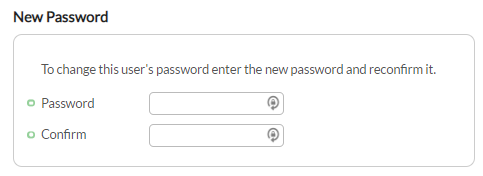
A secure password (8-25 characters) should contain both letters and numbers and not contain an English word or easily guessable value. The password has to be reentered into the confirm password field a second time (since the password is not visible the first time it's typed). A good technique for creating a safe password is to think of a memorable, but not easily guessable phrase, then use the first letter of each word plus an additional digit or two inserted somewhere within the password, so that the final password is not something that would be contained in the dictionary.
New FTP Password
This Section allows you to setup access to the account via FTP. This is mostly used for catalog and screen branding configuration.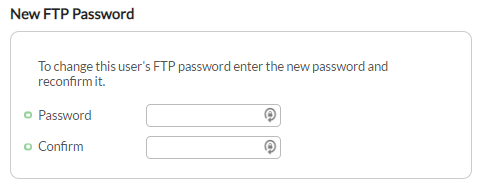
The Password here will need to be something different from the main password but again should contain both letters and numbers and not contain an English word or easily guessable value.
Related: FTP Server Access
UltraSecure One-Time Password Token
UltraCart supports two factor authentication on your UltraCart account to enhance the security of your account. Two factor authentication means you have something you know (your regular password) and something you have (the token on your phone that is generating the one time password). Previously UltraCart used physical tokens from CryptoCard (deprecated) and our own OTP application for Android (deprecated), but has now standardized on the open source project Google Authenticator that is available for all the major mobile phone platforms. There are two primary benefits to using an OTP token:
- Enhanced security
- Removes the requirement for IP activation
- Removes the requirement for a password change every 90 days.
Related: UltraSecure OTP Tokens
Group Membership
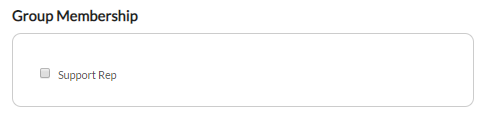
Use group memberships to assign same permissions to multiple Users.
Permissions
Permissions allows you to set the level of access you want each user within your account to have. You should only grant each user the minimum permissions they need to perform their job tasks.
Simply place a check in the box to the left of the permissions you want to grant to this user.
.png?version=1&modificationDate=1739377271671&cacheVersion=1&api=v2)
Admin
(These permissions should be restricted to only those users that are administrators on the account.)
| Field | Description |
|---|---|
| Edit Service Plan | This gives a user access to the account's billing (SERVICE PLAN) area. This Permission also triggers Service Plan "Billing Activity" Notification emails Any user that has this permission configured will receive the automated service billing email notification for the account. This may confuse the user into thinking they are being charged when the message is indicating billing activity on the UltraCart account. Only give this permission to users on the account that need to be able to review the UltraCart related Service Plan billing activity and the updating of the billing credit card number on file. |
| Edit Users | No one but the Owner on the account and/or a very trusted employee should have access to this permission. With this setting you can add or delete users whenever you want. |
| Link New Accounts | This permission allows the user to link New Accounts to a linked accounts configuration. |
Advanced
| Field | Description |
|---|---|
| Affiliate Management | Allows the user to navigate to the Affiliate Management location. |
Configuration
| Field | Description |
|---|---|
| Edit Customer Notification | Allows the user to access the email notification section, which controls the emails sent to customers. |
| Edit Export Settings | Allows the user to use the Exporting Orders section. The user will also need the Edit Settings permission. |
| Edit Fraud Rules | Allows user to access and edit the Fraud Prevention Rules |
| Edit Gift Giving | Allows the user to make changes to the gift giving section of the checkout. *The user will also need the permission to edit settings. |
| Edit Look and Feel | Allows the user to make changes to the screen branding themes. Screen branding themes control the look and feel of your checkout pages. |
| Edit Return Policy | Allows the user to make changes to the global Return Policy page. |
| Edit Tax Rates | Allows the user access to Sales Tax. The user will also need the Edit Setting permission. |
| Manage Marketing | Allows the user to access the marketing section, which includes Emails and 3rd party Emails. |
Conversations
| Field | Description |
|---|---|
| Phone System | Enables access to the Phone System |
| SMS/Web Chat Administrator | Enable for administrators of the SMS/Chat |
| SMS/Web Chat User | Enable for users/operators of the SMS/Chat |
Data Warehouse
| Field | Description |
|---|---|
| Grant Permissions to Others | The owner user can delegate the assignment of the Level1-Level4 BigQuery data access by assigning this permission to a user. |
| Level 1 - Standard Access (No PII) (Owner Managed) | |
| Level 2 - Low sensitive data (Owner Managed) | |
| Level 3 - Medium sensitive data (Owner Managed) | |
| Level 4 - High sensitive data (Owner Managed) |
Items
| Field | Description |
|---|---|
| Destructive Import Options | Enable only for users performing advanced Item Imports. This enables the "destructive" import options that erase/overwrite catalog assignments, related item assignments, item attributes, or delete items. |
| Edit Items | Allows the user to make changes to the items configured within the account. This also includes adding and removing items from the account. |
| Edit Reviews | Allows the user to view and make changes to customer reviews. |
| View Items | "Read only" permission to view the items and item editor but can't make changes to the items configuration. |
Operations
| Field | Description |
|---|---|
| Access Accounts Receivable | Allows the user to navigate to the Accounts Receivables location. |
| Access Quotations | Allows the user to go into the Quotes review location. |
| Access Reports | Allows the user to navigate to the Reporting location. |
| Access Reports without PII | Allows the user to navigate to the Reporting location, but restricts access to reports that contain PII (Personally Identifiable Information.) |
| Access Shipping Department | Allows the user to navigate to to the Shipping Department location. |
| API Access ([IP Addresses]) | This is a special use setting typically configured on a user that is configured on the account specifically for use in API integration. Limiting this setting to users that are otherwise limited to very little access to the UltraCart backend improves security. IP Addresses (white-listing) When configuring a user with API permission, you will also click on [IP Addresses] then enter in the IP address(s) of the servers where you are implementing API scripts, this "white-listing" process protects against intrusion attempts where a hacker attempts to copy and edit your API implementation and then place their version on another website. The "IP Addresses" field can hold about 15 IP addresses. You can use The asterisk character to apply an IP range. The wildcard format is ###.###.###.* |
| Accounts Receivable - Skip Payment Processing | Enabling this permission, allows the A/R (viewing a specific order) to display the 'Skip Payment Processing' button , as well as the 'Authorize Orders' button, in the Payment processing section. *Only enable if the user requires these actions as part of their role responsibilities. |
| Back End Order Entry | Allows access to the Back End Order Entry (BEOE). Since the BEOE tool allows for overriding of item costs and shipping costs on-the-fly, you may choose to be selective about which users have access to the BEOE tool. |
| Back End Order Entry (Customer Profiles) | Allows the user to access customer profiles search tool when using the BEOE tool. |
| Back End Order Entry (Prevent Direct Credit Card Entry) | Select this to restrict direct credit card entry (for example to limit them only to the PII protected CC entry by the customer via phone call. |
| Delete Order | Deleting an order removes it from your system there is no way to get it back. |
| Edit Catalog | Allow the user access to the Catalog configuration pages. (Applies only to the deprecated legacy catalog system) |
| Edit Order | Allows the user to Edit, Delete and make changes to customers orders. |
| Edit Settings | Allows the user access to the configuration section. |
| Manage Auto Orders | Allows the user to have access to review or make changes to auto orders. The user will also need the permission to Review Orders. |
| Manage Chargebacks | Allows the user to access the Chargeback Processing section. The user will also need the Edit setting permission. |
| Manage Customer Profiles | Allow the user to have access to the Customer Profiles section. This will allow the user to edit, delete, and add customer profiles. |
| Manage Gift Certificates | Allows the user to edit and create Gift certificates within the marketing section. |
| Refund Order | Allows the user to issue a refund on orders. |
| Review Orders | Allows the user access into the Order Management section. |
| View Amazon PII | Enable this for users that are reviewing orders and need to be able to see the Personally Identifiable Information. |
Storefronts
| Field | Description |
|---|---|
| Communications - Download Lists/Segments | Enable for marketing users that may require access to this customer data |
| Communications - Readonly | Allow 'Read only' access to the Communications area. |
| Communications - Use | Allow editable access to the Communications area. |
| Full Access | Allow editable access to the Communications area. Enable for users with role to create and edit Flows, Campaigns, etc. Important Note Regarding Email Notification triggered by this permission If no user on the account has the email notification "Marketing: Storefront Communications" enabled on the account, then all users with full permissions to the Storefront will received the notification, since this notification is related to additional service fees. In order to prevent the broadcast of this email notification to all users with the "full permission" permission, make sure to configure at least one user on the account with the email notification. |
| Recordings | Allows user to access the shopping session recordings. |
| Upsells - Readonly | Allow 'Read Only' access to the upsells area to review but not edit the flows. If unchecked, the user will have create/edit/delete permissions. |
| Visual Builder Enable/Disable Protected Content | Allows user to enable/Disable protected content within the Storefront Visual Builder editor. Enable only for the admin users. |
Email Notification
Just like Permissions the Email Notification section allow you to set each user with their own set of email notifications. This allows you to have one user that only handles order that need to be shipped or another user that is looking at auto order (recurring orders).
Simply place a check in the box to the left of the notification you want to grant to this user.
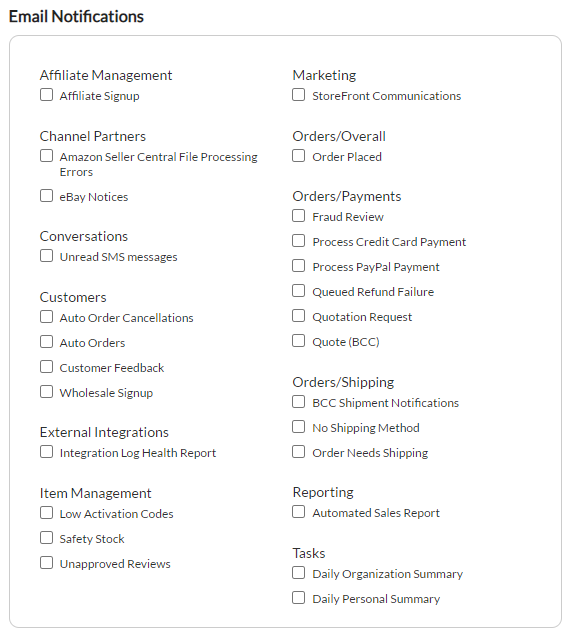
The Configurable Email Notifications Appear in Sections
Affiliate Management
| Field | Description |
|---|---|
| Affiliate Signup | Check this box to have UltraCart send notification for any new "Affiliate" Signups. |
Channel Partners
| Field | Description |
|---|---|
| eBay | Notifications related to sales activity on eBay. |
Conversations
| Field | Description |
|---|---|
| Unread SMS messages | Enable for users that are users of the SMS Conversations, to notify them when a SMS message has been received that needs follow up. |
Customers
| Field | Description |
|---|---|
| Auto Order Cancellations | Select this checkbox to be notified whenever an auto order is cancelled. |
| Auto Orders | Select this box to be alerted to any problem with processing of a scheduled auto order. (The message will include reference to the auto order customer and the transaction response recorded from the gateway.) |
| Customer Feedback | Select this box to receive notifications related to the "Case Management" tool that is part of the "My Account, Customer Portal" |
| Wholesale Signup | Select this box to receive notifications related to Wholesale Signups |
External Integrations
| Field | Description |
|---|---|
| Integration Log Health Report | Sends a daily email notification related to the account integrations. See also the integration logs reports in the reporting area:
Daily Integration Health Report Delivery The report will only be sent if there are 1 or more critical issues in the log reports. PLEASE NOTE: Starting on August 1, 2021, if your account does not have at least one user with the notification enabled, UltraCart will send the notification to all users on the account with edit settings permissions. |
Item Management
| Field | Description |
|---|---|
| Low Activation Codes | If selected, user receives notifications when items which are configured with the "Activation Codes from List" in the Digital Delivery tab of the item editor. |
| Safety Stock | If selected, user receives notification when items configured with Safety Stock threshold reaches the configured quantity. (See Safety Stock Reporting) Related 'Out of Stock' notification If you have a form configured on your website for customers to submit their email for notification with an out of stock item is back in stock. USers with the 'Safety Stock' email notification enabled will receive a weekly email notification, sent Monday mornings, that will list the itemID(s) and the number of customers waiting, When the items are update to be back in stock, the customer will be sent a email notifying them that the item is now available for purchase. Example of the Email notification sent to the user (not the customer): |
| Unapproved Reviews | If selected, user receives notifications of newly submitted reviews that require approval. (see My Account Customer Portal#Reviews) |
.png?version=1&modificationDate=1715271069378&cacheVersion=1&api=v2&width=600&height=686)
Marketing
| Field | Description |
|---|---|
| Storefront Communications | If checked, user receives notifications related to activity/errors occurring with Storefront Communications email campaigns and flows.. Important Note Regarding Email Notification triggered by this permission If no user on the account has the email notification "Marketing: Storefront Communications" enabled on the account, then all users with full permissions to the Storefront will received the notification, since this notification is related to additional service fees. In order to prevent the broadcast of this email notification to all users with the "full permission" permission, make sure to configure at least one user on the account with the email notification. |
Orders > Overall
| Field | Description | ||||||||
|---|---|---|---|---|---|---|---|---|---|
Order Placed | If checked, user receives notification whenever an order is placed. This notification has the following optional settings:
|
Orders > Payments
| Field | Description | ||||
|---|---|---|---|---|---|
| Fraud Review | Sends notification whenever an order triggers a Fraud Review rule configured in the Fraud Prevention configuration page.
| ||||
| Process Credit Card Payment | Check this box to have UltraCart send notification any time a credit card order needs to be processed.
| ||||
| Process PayPal Payment | Check this box to have UltraCart send notification any time a PayPal order needs to be processed.
| ||||
| Queued Refund Failure | Check this box to have UltraCart send notification any time a Queued Partial Refund failure occurs for an order. Only applicable to Rotating Gateways This notification only applies to rotating gateways configurations that have the 'Batch Cutoff Times' section configured. *If you configure the batch cut-off time for this gateway, partial refunds that occur before the batch has closed out will be queued for processing 12 hours after the batch has closed.
| ||||
| Quotation Request | |||||
Check this box to have UltraCart send notification any time a quote request is generated.
|
Orders > Shipping
| Field | Description | ||||||
|---|---|---|---|---|---|---|---|
| BCC Shipment Notifications | Check this box to have UltraCart send a BCC of the customers' shipment notification. | ||||||
| No Shipping Method | Check this box to have UltraCart send notification any time an Auto order can not be placed because no shipping method could be found. | ||||||
| Order Needs Shipping | Check this box to have UltraCart send notification any time an order goes into the shipping department.
| ||||||
| Split Shipment | Check this box to have UltraCart send notification any time an order is being slip between (2) two or more distribution centers.
|
Reporting
| Field | Description |
|---|---|
| Automated Sales Report | If selected, will send out the automated sales summary report (see Report Delivery) |
Frequently Asked Questions
Question: "Recently we've been missing some email notifications of orders, and in a couple of cases the emails are showing up hours later. Why might this happen?"
Answer: You'll need to contact your email server administrator to discuss delivery processing. It can very wildly based upon the target server. For example someone on gmail will usually have the email in their inbox within 1-2 seconds after it's sent to them, but other email servers may be overloaded and take an hour or more to receive an email. If your email server is down for any reason when our high speed outbound sends attempt to contact it then the message requeues at progressive intervals until the target server becomes available.
Question: "Is there a way to get text alerts when new orders come in? Sometimes we get folks to order online past our normal business hours and we were wondering if Ultracart could send text notifications to our cell phones?"
Answer: We do not have text alerts. Hoever, you can setup a user with no permissions (since the user is not being used for accessing the account backend), then configure this user with the appropriate email notifications for that user, configuring this user with the email associated with the users mobile phone email address, so that the notifications are forwared to the phone.For example if you are using Verizon and google "verizon email to text" you'll see Google give you the instructions as the first result.
Question: "I was attempting to edit a user and the login changed from the users' login to my own, why?"
Answer: The web browser form filling is inserting your login into the page. You can temporarily disable form filling in your web browser or setup an additional browser profile that does not contain your stored autofill information.
In Chrome browser:
To Turn Off 'Autofill':
- Click the three dots menu
- Click 'Settings'
- Click 'AutoFill'
- Click 'Addresses and more'
- Click the slider button to the off setting.
To Add a new browser profile:
- Click your active browser profile (It's directly to the left of the "three dots" menu)
- Click the '+Add' button
- Enter an name and photo.
- Save
Password Manager
If you have a password manager installed, such as LastPass, please also inspect the settings in the password manager, as well.
Related Documentation
Receiving Email Notifications of Orders
Logging Into Your UltraCart Account