Affiliate Network Pixel Configuration Tutorial
- Jonathan Tew
- Perry Tew
- Hunter Schaeffer
- Chris Torigian
Affiliate Network Pixel Configuration Tutorial
Reconciling With Affiliate Networks
This tutorial will discuss the complications of working with multiple affiliate networks. These days there are lots of different networks like Above All Offers, Clickbooth, etc. and each of these networks has their own internal tracking system that they will use to record clicks to your site and conversions. This will then be used to calculate how much you owe them. It's never a good idea to let a third party tell you how much you owe them unless you have a good audit trail in place. Ideally you would put into place a tracking system on your side that would match up to their tracking system so that both sides have robust numbers that they can trust. To implement this we are going to leverage two features of UltraCart: the affiliate system and the affiliate network pixel feature.
Affiliate System
The UltraCart affiliate system is an incredibly robust affiliate tracking system that can provide rock solid conversion tracking. Because it's internal to UltraCart we don't have to rely on a particular script firing on a receipt page in order to give credit to an affiliate. This gives UltraCart an advantage in tracking over 3rd party network trackers. So for each affiliate network we want to set them up as an affiliate within UltraCart. You can do this under:
Main Menu → Affiliate Management → Affiliates
After you create an affiliate for each of the networks we can move on to the Affiliate Network Pixel setup. The network itself does not have to log into this affiliate account if you don't want them to, but it's OK if they do.
Affiliate Network Pixel
The Affiliate Network Pixel (ANP) is a feature of the checkout that is configured on a per screen branding theme basis. The purpose of the feature is to track when the network sends traffic to one of your landing pages and then fire ONLY that networks pixel on the receipt. By only firing one pixel on your receipt you can guarantee two things:
- The network can't claim credit for a sale unless they actually delivered the traffic.
- If two networks interacted with the customer in some fashion, two pixels are not fired causing both networks to claim a commission.
To start configuring the ANP
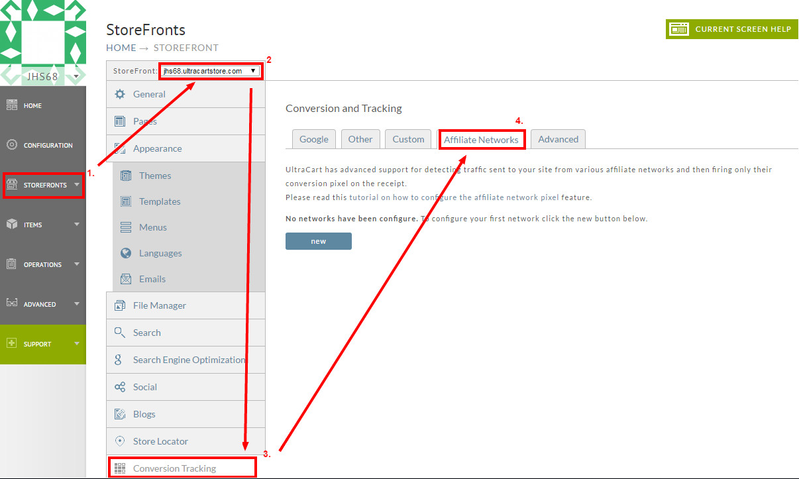
For Storefront checkouts
Navigate to:
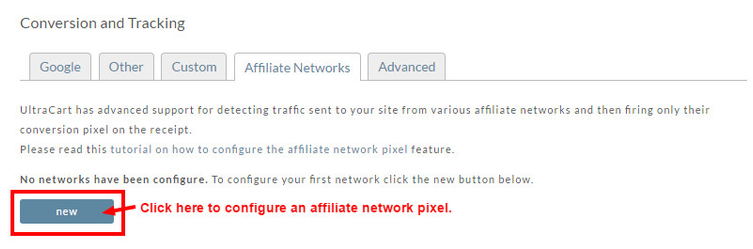
To configure an Affiliate network pixel, click the "new" button:
Upon clicking the "new " button the following a pop up window appears, presenting the affiliate network pixel editor:
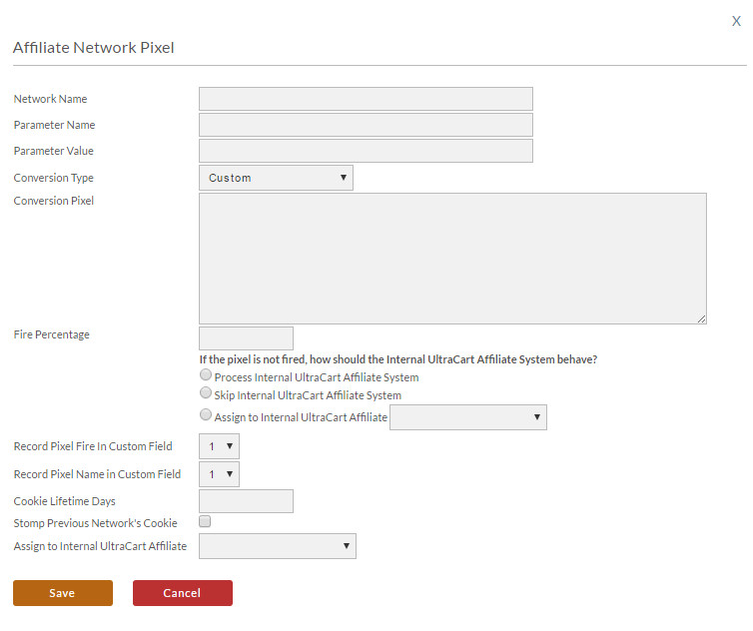
Field | Description | Required | Recommended Value |
|---|---|---|---|
Network Name | The name of the network | Y | |
Parameter Name | The name of the parameter on the landing page URL that the ANP system should look for | Y | n |
Parameter Value | The value of the parameter that must be present for affiliate to be associated with this network | Y | a number like 100, 200, 300, etc. |
Conversion Type | The type of conversion pixel to inject. | Y | Custom |
Conversion Pixel (Custom) | The snippet of conversion pixel HTML/JavaScript to render on the receipt. You can use any of the receipt tokens within this pixel like [order] or [subtotal] | Y | Snippet provided by the network |
Fire Percentage | The percentage of the time to fire their pixel. Some merchants and networks agree to reduce this by 1-3% points to handle refunds that can't easily be backed out | Y | 100% |
| If the pixel is not fired, how should the Internal UltraCart Affiliate System behave? | Choose one of these radio button choices:
| ||
Record Pixel Fire in Custom Field | The custom field (1-7) to record that a pixel was fired. It will populate with a Y/N flag | Y | 1 |
Record Pixel Name in Custom Field | The custom field (1-7) to record the name of this pixel. | Y | 2 |
Cookie Lifetime | The amount of time that the ANP cookie should stay on the customer's browser | Y | 90 |
Stomp Previous Network's Cookie | If this box is checked then the last one to touch the customer will receive credit. If it's left unchecked then the first to touch the customer will receive credit | Y | checked |
Assign to Internal UltraCart Affiliate | The internal UltraCart affiliate to record the sale against. | Y | The affiliate configured in the prior section of this tutorial |
Server to Server Conversion Type
This is a more reliable communication method rather then having the browser handle this communication. However this is not required. If you set the conversion type to Server-to-Server you can then specify a URL that UltraCart will ping to notify the third party.
| Field | Description |
|---|---|
| Conversion Type | Server-to-Server |
| Conversion Pixel | You'll configure the tracking URL here. You can use the tokens [orderid], [subtotal] or [anp_param_<name>] in the example. For example on FlexOffers you would use:
All the parameters on the landing page URL as collected and made available to send back in the pixel using the anp_param_<name> token. |
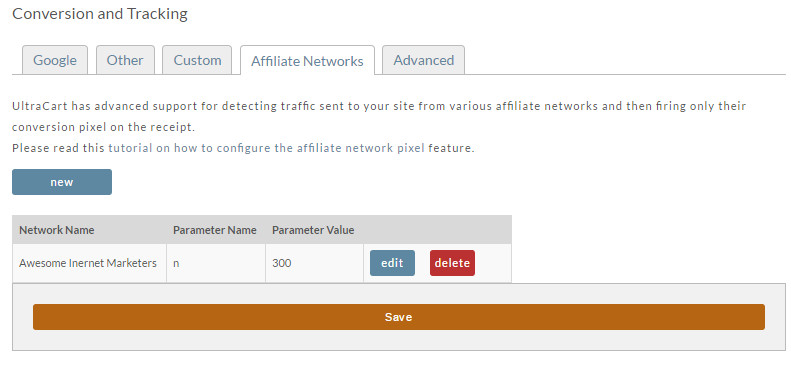
After completing the filling out of the form and submitting it, you'll see the newly configured affiliate network pixel like this:
Proceed to the "Testing it Out" section below.
For Legacy Screen Branding Themes checkouts
Navigate to:
Main Menu → Configuration → Screen Branding Theme → [edit] → Conversion and Tracking
At the bottom of the page you will see the Affiliate Network Pixel section like the one shown below.
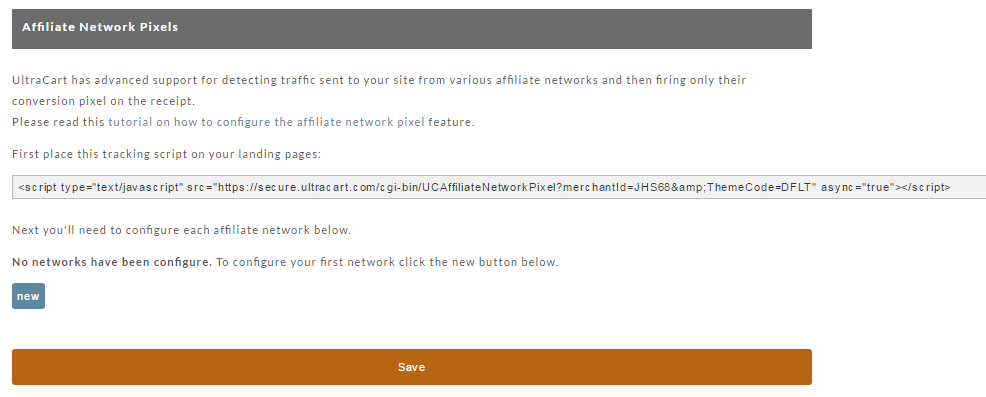
As you can see in the screen shot above there is a tracking script. You need to install this script on ALL of your landing pages for your site. Anywhere the affiliate network may send traffic to your site the script needs to be installed.
After you have installed the script it's time to define the first network by clicking the new button. The ANP Editor looks like the screen shot below.
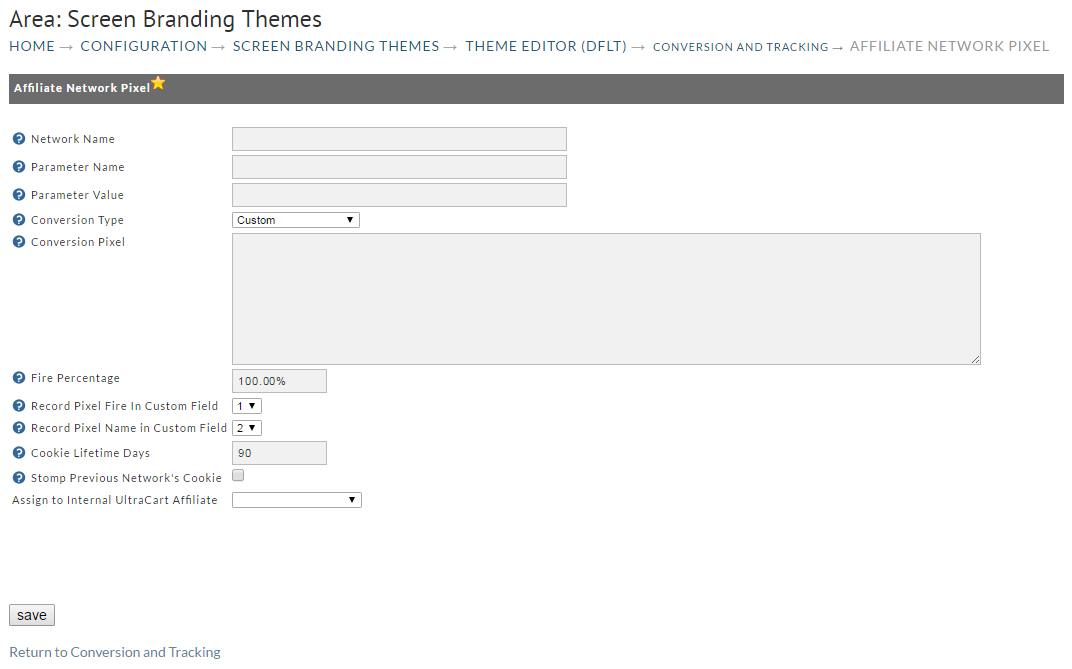
Field | Description | Required | Recommended Value |
|---|---|---|---|
Network Name | The name of the network | Y | |
Parameter Name | The name of the parameter on the landing page URL that the ANP system should look for | Y | n |
Parameter Value | The value of the parameter that must be present for affiliate to be associated with this network | Y | a number like 100, 200, 300, etc. |
Conversion Type | The type of conversion pixel to inject. | Y | Custom |
Conversion Pixel | The snippet of conversion pixel HTML/JavaScript to render on the receipt. You can use any of the receipt tokens within this pixel like [order] or [subtotal] | Y | Snippet provided by the network |
First Percentage | The percentage of the time to fire their pixel. Some merchants and networks agree to reduce this by 1-3% points to handle refunds that can't easily be backed out | Y | 100% |
Record Pixel Fire in Custom Field | The custom field (1-7) to record that a pixel was fired. It will populate with a Y/N flag | Y | 1 |
Record Pixel Name in Custom Field | The custom field (1-7) to record the name of this pixel. | Y | 2 |
Cookie Lifetime | The amount of time that the ANP cookie should stay on the customer's browser | Y | 90 |
Stomp Previous Network's Cookie | If this box is checked then the last one to touch the customer will receive credit. If it's left unchecked then the first to touch the customer will receive credit | Y | checked |
Assign to Internal UltraCart Affiliate | The internal UltraCart affiliate to record the sale against. | Y | The affiliate configured in the prior section of this tutorial |
Putting it All Together
So let's make up up a fictitious network named "Awesome Internet Marketers". They are going to send traffic to our home page and the URL will look like this:
These are the two urls you will need.
First, your landing page:
http://www.myawesomesite.com/?n=300

Notice that your landing page has the parameter name (n) and value (300) that you configured above.

Second, within that page, you should have the following script:
<script type="text/javascript" src="https://MERCHANT_ID.ultracartstore.com/cgi-bin/UCAffiliateNetworkPixel" async="true"></script>

If you're using a custom SSL, replace the hostname with that.  Use whatever your StoreFront's hostname is.
The affiliate network pixel parameters are embedded in the landing page url, for example n=300 to identify their traffic to our site. When the tracking script is called, the script reads the Referer header and extracts the tracking parameters from the Referer. This allows you to keep the same javascript tag and modify the affiliate tracking easily based on the incoming traffic.
Important note regarding the placement of the Affiliate Network Pixel script in the landing pages
Script placement
(Replace "MERCHANT_ID" with your accounts' actual merchantID:
<script type="text/javascript" src="https://MERCHANT_ID.ultracartstore.com/cgi-bin/UCAffiliateNetworkPixel" async="true"></script>
The Affiliate Network Pixel script must be placed within the body tags of the page source for it to properly collect the network affiliate parameters.
Testing it Out
Once you have everything configured it is simple to test. Follow these steps:
- Click through the affiliate networks link so that you end up at your landing page.
- Verify that the URL for your landing page contains the appropriate parameter name and value that you configured (if we were using the example above we would look for n=300):
- Verify that the ANP tracking script loaded on the page (we recommend looking at FireBug's Network Tab in FireFox or the Google Chrome Developer Tool Network Tab). You should see UltraCart set a cookie on the customer that is <MID>-AFF (where <MID> is your UltraCart merchant ID)
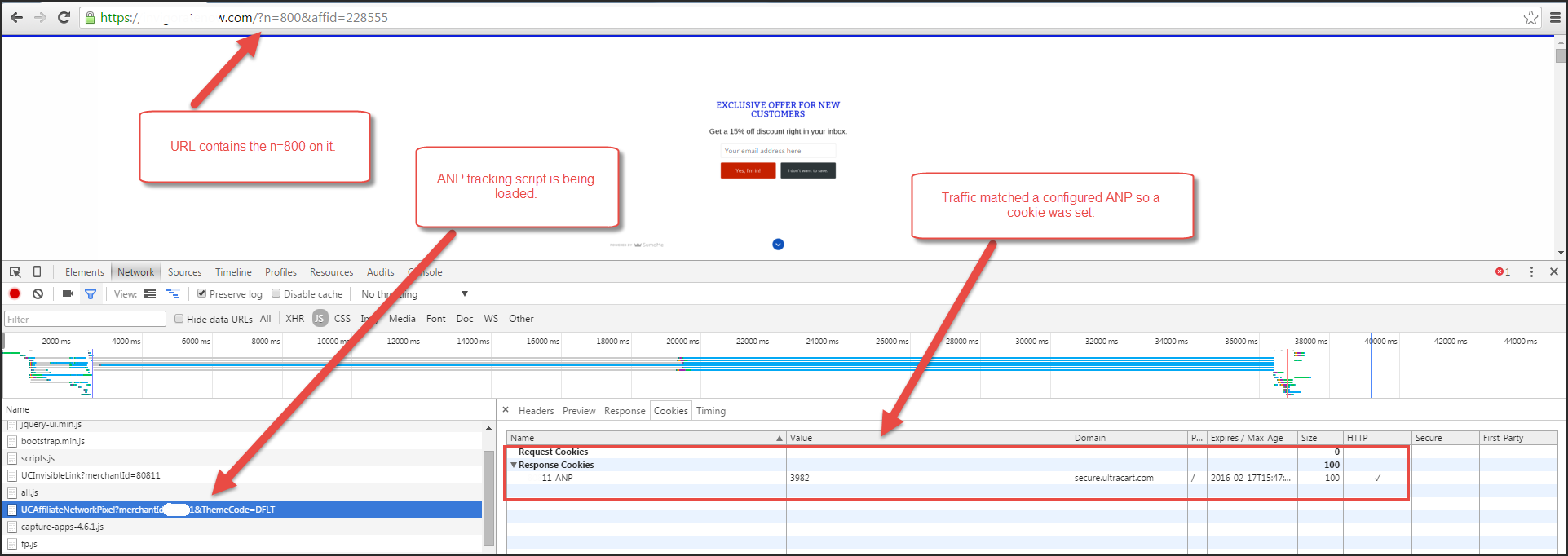
- Complete an Order on your Store (if you are using a test card, be careful of whether skip affiliate processing is checked or not)
- To configure a test card go Main Menu → Configuration → Payments → Tests
- Make sure the Affiliate Networks Pixel fired on the receipt page (we recommend looking at FireBug's Network Tab in FireFox or the Google Chrome Developer Tool Network Tab).
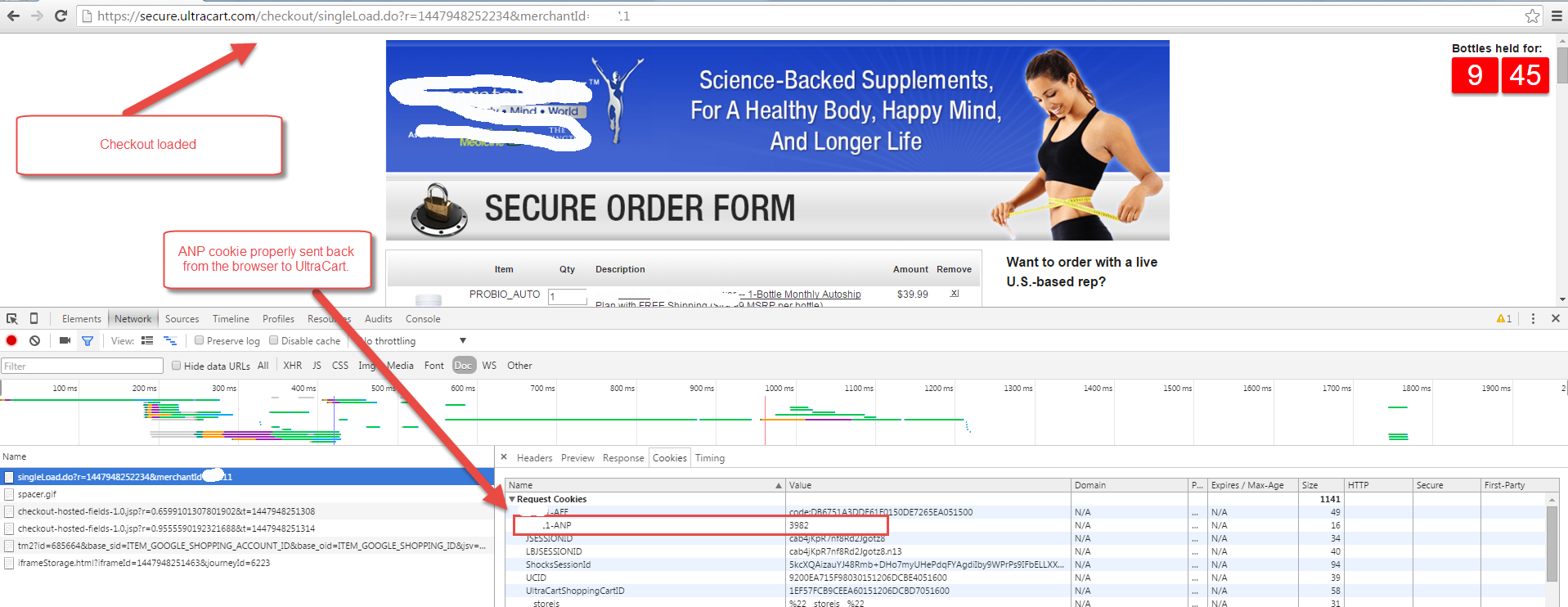
(On the network tab, you should see a request for the image pixel made and return with a 200 status code.)
Viewing the receipt page source you will find the rendered affiliate tracking pixel: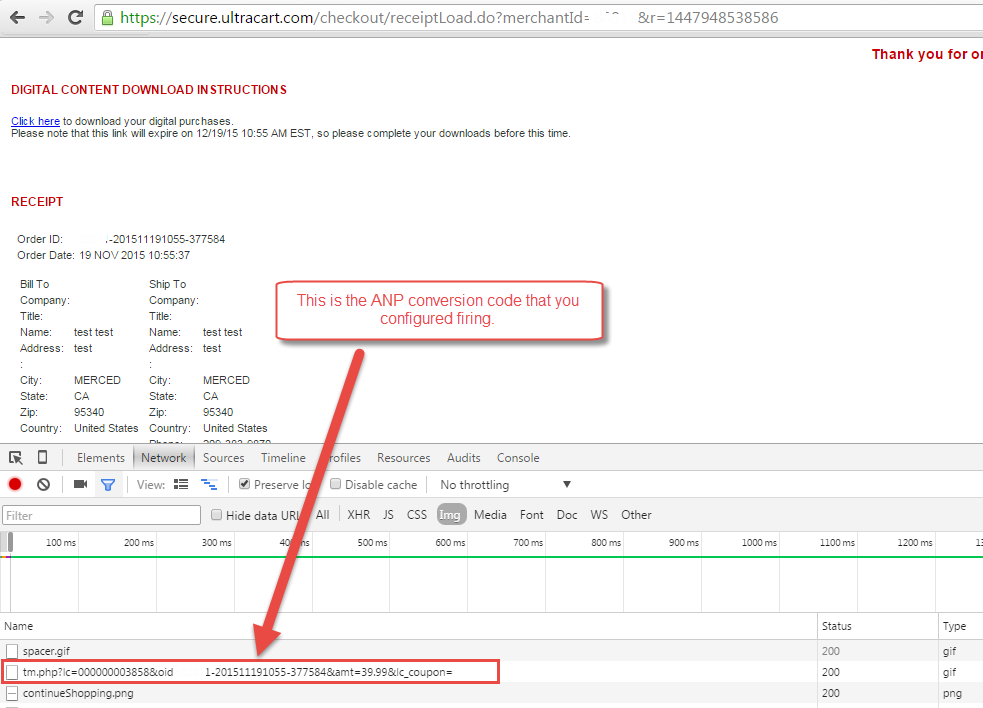
and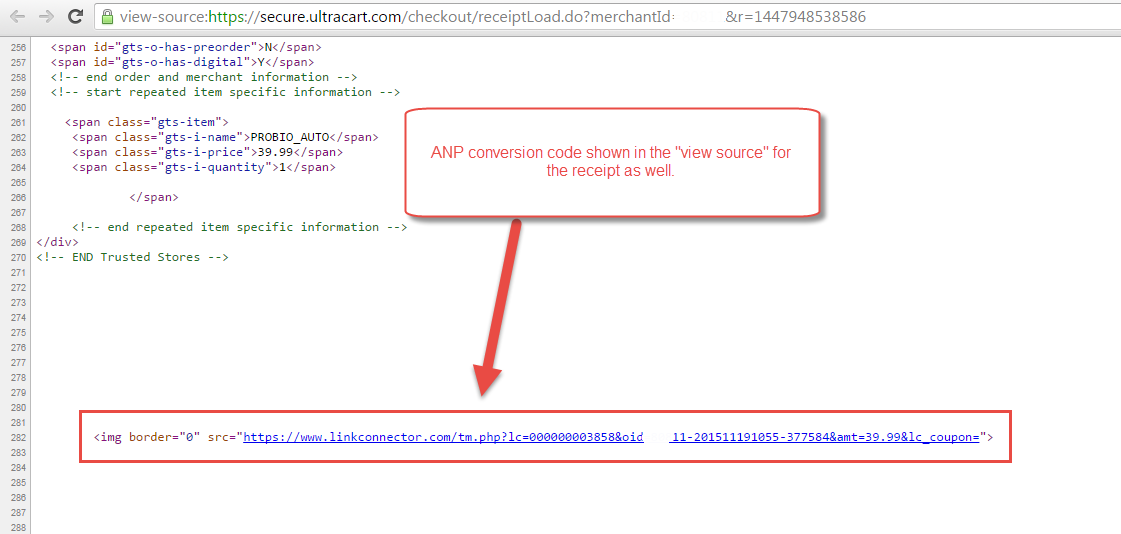
- Go to the affiliate within your UltraCart affiliate system view their reports. You should see the conversion credit to them.
Congrats, you have just completed your training on master affiliate network plumbing!
Frequently Asked Questions
Q: I'm testing my affiliate network pixel configuration and everything seems to be working except for the firing of the network affiliate pixel?
A: The Affiliate Network Pixel script must be placed within the body tags of the page source for it to properly collect the network affiliate parameters.