Google Product Search Configuration
- Perry Tew
- Hunter Schaeffer
- Loyd James (Unlicensed)
- Jonathan Tew
Introduction
Google Product Search is a product search engine run by Google. It is a search engine dedicated to products which merchants pay a cost per action (CPA) whenever the customer clicks on one of their listings.
Steps
- Sign up for Google Merchant Center.
- Verify ownership of your StoreFront. To upload the html file they provide, follow these steps:
- Download the file (named something like googlee60e2b25881f8fd6.html) to your desktop.
- Open another browser window, login to secure.ultracart.com, and navigate to your StoreFront File Manager.
Home → StoreFronts → (select your StoreFront) → (File Manager tab) - Click the upload icon, which is the third File Manager icon with the blue up arrow, and upload your file into the root directory of your web server.
- Open the user that google wants you to open. Your html file will be provided to Google for verification.
- Register a new Feed within Google Merchant Center.
- Go to your Google Merchant Center and click on the Feeds tab.
- Click the
+FEEDbutton to add a new feed. - Options: Mode = Standard, Feed type = Products
- Select a country
- Enter a feed name.
- Click Continue
- On stage 2 of the wizard, choose the input method "
Scheduled Fetches". - Stage 3 of the wizard allows you to specify the frequency. The important field is File URL. UltraCart generates your feed file into
/feeds/googlebase.xml, so enter your full StoreFront url to that file.https://demo.ultracartstore.com/feeds/googlebase.xml.
- Activate Google Product Search within UltraCart (instructions below).
Manage your individual items via the Google Product Search Tab of the Item Editor.
Configuring items for feedfile
The last step of the integration process will be the configuration of the items. You must have all items in your store configured with all of the required fields. These will have [required] to the right of the field.
If the item should not be included in the, then you must select the "Omit from Feed" checkbox (make sure to click the save button to save your changes.)See the following for more details: Google Product Search Tab
Activate Google Product Search in UltraCart
To activate Google Product Search within UltraCart, navigate to:
Configuration → External Integrations → Google Product Search
Feed Frequency and Title Format
The first step is to set the Feed Schedule to Daily. The next step is to choose the title format. There are four different options for the title format. The correct option for your feed will depend upon the product data.
For example if customers commonly search by SKU for products such as HBZ4900 then you would want to select "Description + Item Id". Because there is a limit to the title length in the feed file, UltraCart will shorten the description to add the item id if necessary.
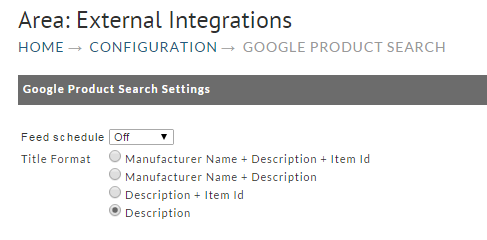
Once you've chosen feed schedule and title format, click Save.
Storefronts
The StoreFront system will place a copy of the XML file into the /feeds/ directory. Below is a screen shot of the file on the StoreFront file manager.
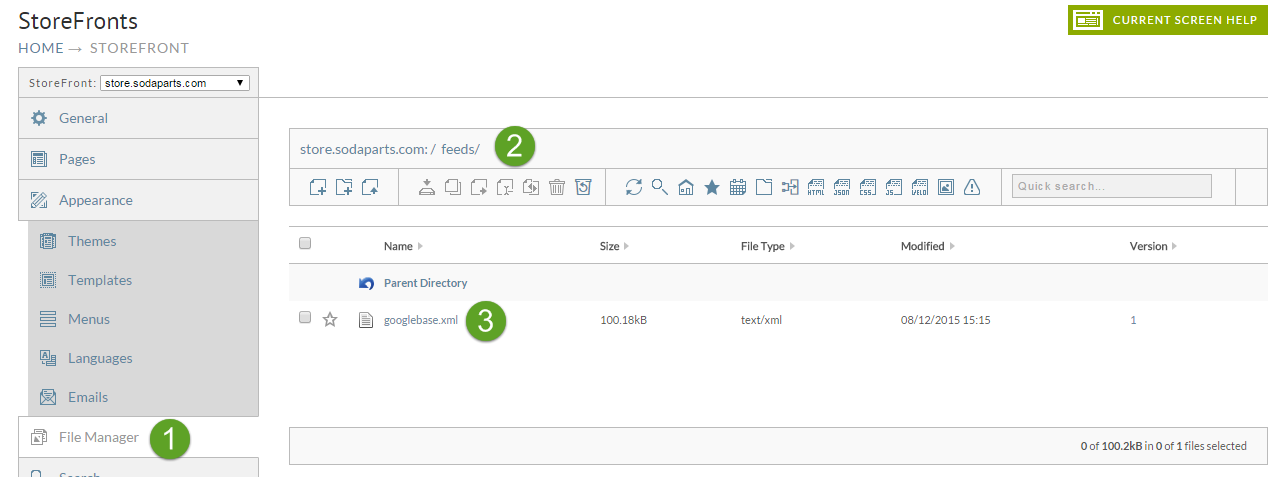
This is the URL mentioned above in the steps to create a feed within Google Merchant Center. In this example the StoreFront is "store.sodaparts.com", the directory is "/feeds/" and the file is "googlebase.xml". So the full URL that you would register with Google would be:
https://store.sodaparts.com/feeds/googlebase.xml
Item Configuration
After enabling the integration, the "Google Product Search" tab will appear in item editor. See the following for more details regarding the configuration of the Google Product Search tab in the item editor.
Frequently Asked Questions
Question: I have my feed set to update daily yet it does not seem to reflect my recent changes (made over 24 hours ago) is there a way to manually force a refresh?
Answer: UltraCart process the feed files daily at 5AM EST at which point Google polls for and processes the files. At the bottom of the page there is an update now which will trigger the feed to rebuild within a few minutes.
Related Documentation
Complete list of Google Categories
https://support.google.com/merchants/answer/7052112 (Google Product Search Data Specification)
https://www.storegrowers.com/google-shopping-feed/ (how to fix your google product feed)