Google Shopping / Product Search

Google Shopping / Product Search

Introduction

Google Shopping (also known as Google Product Search) is a product discovery platform where merchants can list their products to appear in Google search results. This integration enables UltraCart merchants to generate and submit product feed files directly to Google Merchant Center.

When configured, UltraCart automatically generates a feed file (/feeds/googlebase.xml) that Google fetches on a schedule you define. You can also configure per-item feed attributes through the Item Editor and perform bulk updates using the Batch Import/Export tools.

Tip: Google Shopping operates on a cost-per-click (CPC) model — you are only charged when a customer clicks your listing.


Prerequisites

  • An active Google Merchant Center account

  • Verified ownership of your StoreFront domain

  • Complete and accurate product data for all listed items

  • Google Product Search Services enabled in UltraCart (see Part 1 below)

  • Items configured with a valid product category and image URL (see Part 2 below)


Part 1 — Set Up Google Merchant Center & Register Your Feed

Step 1 — Sign Up for Google Merchant Center

Create or log in to your Google Merchant Center account.

Step 2 — Verify StoreFront Domain Ownership

Google requires domain verification by uploading a verification HTML file to your StoreFront.

  1. Download the verification file from Google (e.g., googlee60e2b25881f8fd6.html).

  2. Log in to secure.ultracart.com and navigate to:
    StoreFronts → [Select StoreFront] → File Manager

  3. Click the Upload icon and upload the file to the root directory (/).

  4. Return to Google Merchant Center and confirm verification.

Note: The verification file must remain in the root directory for ongoing verification.

Step 3 — Activate Google Product Search in UltraCart

Navigate to:

Configuration → External Integrations → Google Product Search

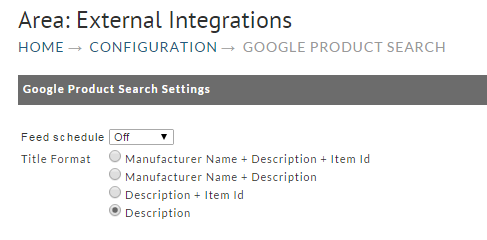
  1. Set Feed Schedule to Daily (recommended).

  2. Select a Title Format:

    • Description Only

    • Item ID Only

    • Description + Item ID

    • Item ID + Description

  3. Click Save.

Tip: If your customers often search by SKU, use Description + Item ID.

Step 4 — Register the Feed in Google Merchant Center

  1. In Google Merchant Center, go to Products → Feeds and click + Feed.

  2. Configure:

    • Mode: Standard

    • Feed Type: Products

    • Target Country: Your target market

    • Input Method: Scheduled Fetch

  3. Set the File URL to your feed file, e.g.:

    https://yourstore.ultracartstore.com/feeds/googlebase.xml
  4. Set Fetch Frequency to Daily and save.

Step 5 — Confirm the Feed File

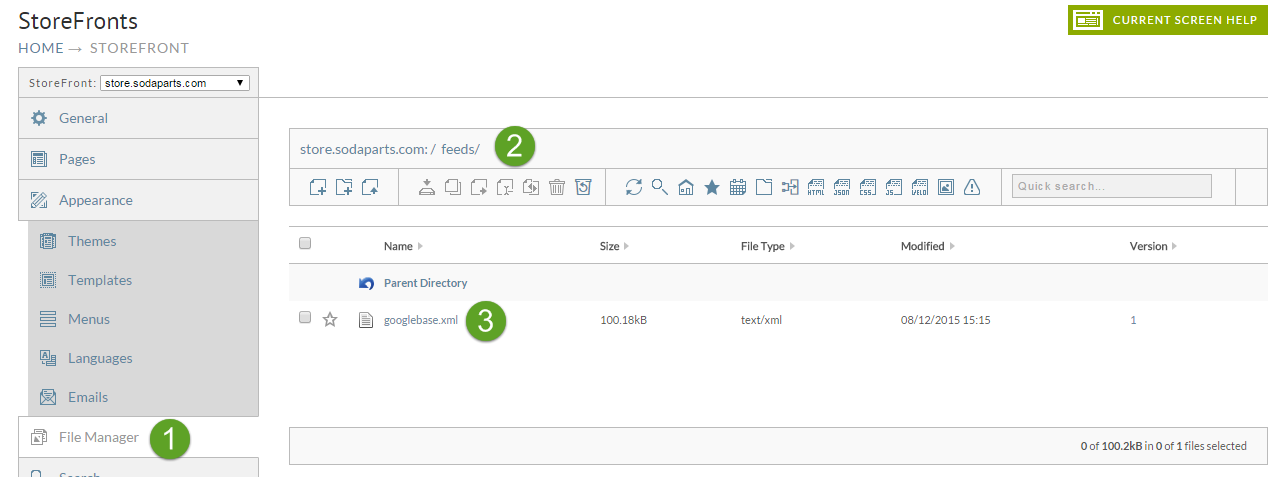
After enabling the integration, confirm the feed file exists in your StoreFront File Manager under the /feeds/ directory.

The full URL to register with Google follows the pattern:

https://[your-storefront-domain]/feeds/googlebase.xml

Tip: UltraCart regenerates this file daily at 5AM EST. Use the Update Now button on the configuration page to force an immediate rebuild.


Part 2 — Configure Items for Google Shopping

Once Google Product Search is enabled, a Google Product Search tab appears in the Item Editor for each product. Every item must either have this tab fully configured or have Omit from Feed enabled.

Category

Each item must include a Google category. If none is provided, the Item Management folder structure is used automatically.

  • Separate category levels with > (Shift + Period).

  • Do not use other separators (commas, dashes, colons).

  • Do not end a category with a trailing >.

Valid

Invalid

Valid

Invalid

Home & Garden > Kitchen > Appliances

Home & Garden, Kitchen, Appliances

Electronics > Computers > Laptops

Home & Garden > Kitchen > Appliances >

Complete list of Google Product Categories

Image URL

A full-sized product image URL is required. Use absolute URLs only — relative URLs are not accepted.

Valid

Invalid

Valid

Invalid

https://store.example.com/products/widget.jpg

/images/1006.jpg

http://www.imaginarystore.com/images/1006.jpg

www.imaginarystore.com/images/1006.jpg

Warning: Google will reject items without valid, publicly accessible product images. Do not use thumbnails.

Omit from Feed

Check Omit from Feed to temporarily exclude an item from the Google product feed — useful when a product is being revised or is temporarily unavailable.

Product Type Fields

Select the appropriate product type and complete all required fields (marked with an asterisk).

Book

Field

Description

Field

Description

ISBN

International Standard Book Number

Format

paperback, hardback, audiobook, or ebook

Author

Author's name

Publisher

Publisher's name

Music

Field

Description

Field

Description

Artist

Artist's name

Format

cd, mp3, tape, or vinyl

Release Date

Release date

Video

Field

Description

Field

Description

Format

dvd or vhs

Director

Director's name

Release Date

Release date

Starring

Main cast

Rating

G, PG, PG-13, R, or NR

REMEMBER: All items must have the proper Product Type selected with all required fields completed, OR have Omit From Feed enabled. Items missing required fields will be rejected by Google.


Part 3 — Bulk Update Product Data

Manually updating Google Product Search attributes on each item individually is time-consuming for large catalogs. Use UltraCart's Batch Item Export and Batch Item Import tools to edit and upload this data in bulk.

Step 1 — Export Items with Google Product Search Columns

  1. Navigate to: Main Menu → Item Management → Batch Item Export

  2. In the Export Contents dropdown, select Google Product Search Columns.

  3. Click Export to download the spreadsheet (includes item ID, description, brand, GTIN, Google product category, and other feed fields).

Step 2 — Populate Google Attributes

  1. Fill in the required Google attributes for each item: gtin, brand, mpn, google_product_category, etc.

  2. Save the file.

Warning: Do not rename or delete any columns. Doing so prevents UltraCart from mapping the data correctly during import.

You can read more about the Google Product Search requirements in their feed specification.

Step 3 — Import Updated Data

  1. Navigate to: Main Menu → Item Management → Batch Item Import

  2. Click Browse, locate the updated spreadsheet, and click Continue.

  3. UltraCart automatically detects that this is a Google Product Search spreadsheet and maps the columns.

  4. Review the mapping confirmation and click Continue to start the import.

Note: After import, you must regenerate your product feed to push changes to Google Merchant Center. Use the Update Now button on the Google Product Search configuration page.

Troubleshooting Bulk Updates

Issue

Possible Cause

Solution

Issue

Possible Cause

Solution

Spreadsheet fails to upload

File format changed or extra columns added

Ensure column headers match the original export exactly

Google attributes not updated

Column mapping mismatch

Verify column names and that UltraCart auto-mapped correctly

Products missing from Google feed

Missing required attributes

Cross-check with Google Merchant Center's required fields list


FAQ

How do I force the feed to rebuild immediately?

On the Google Product Search configuration page (Configuration → External Integrations → Google Product Search), click the Update Now button at the bottom of the page. The feed will rebuild within a few minutes. Normally the feed rebuilds daily at 5AM EST.

What fields are required by Google for product listings?

At minimum, Google requires: ID, Title, Description, Link, Image link, Availability, Price, Brand, GTIN, Condition, and Google Product Category. Some categories (Apparel, Media, Software) require additional attributes such as color, size, or age group. Always check Google's Product Feed Specification.

What if I don't see the "Google Product Search Columns" export option?

This export preset is available only for merchants using the legacy product feed integration. If you don't see it, verify your user permissions include Item Management → Batch Item Export access. Contact UltraCart Support if it's missing.

Can I update only certain fields in a bulk import?

Yes. Leave non-required columns blank and UltraCart will only update fields that contain data in your uploaded spreadsheet, leaving existing values untouched.

My import completed, but Google still shows missing attribute errors. Why?

After updating items in UltraCart, you must regenerate or resubmit your Google Product Feed to push changes to Google Merchant Center. Use Update Now on the configuration page.

Can I automate product data updates?

Yes. Merchants using Google Product Feeds within StoreFront can configure automatic daily feed submissions to Google Merchant Center, eliminating the need for manual batch operations once the feed is set up.


Related Documentation

Complete list of Google Product Categories

Google Product Search Data Specification

How to Fix Your Google Product Feed (Store Growers)