ONTRAPORT
- Jonathan Tew
- Perry Tew
- John Anderson (Unlicensed)
Introduction
OfficeAutoPilot is now ONTRAPORT!
ONTRAPORT (a.k.a. OfficeAutoPilot / SendPepper) is a popular, powerful CRM platform that is integrated with UltraCart. ONTRAPORT can retrieve your item information from UltraCart, receive notices about new orders, rebills, and rebill status updates. UltraCart also supports firing their affiliate system conversion pixel on the UltraCart receipt.
| Event | Data Direction |
|---|---|
| Order (Sale) |
|
| Affiliate Signup | UltraCart → OntraPort |
| Order (Refund) | UltraCart → OntraPort |
| Auto Order Status Change | UltraCart → OntraPort |
| Fetch Items | UltraCart → OntraPort |
Configuration
The first step in configuring ONTRAPORT within UltraCart is to navigate to:
In the top section of the page you will need to configure your ONTRAPORT account. UltraCart offers two different methods to integrate ONTRAPORT; API method or Partner Tracking Pixel method. The 1st section of the configuration will differ depending on which method is chosen. Choosing the API method will require only a single API key whereas the Partner Tracking Pixel method will require substantially more information. The remaining configuration steps are the same for both methods.
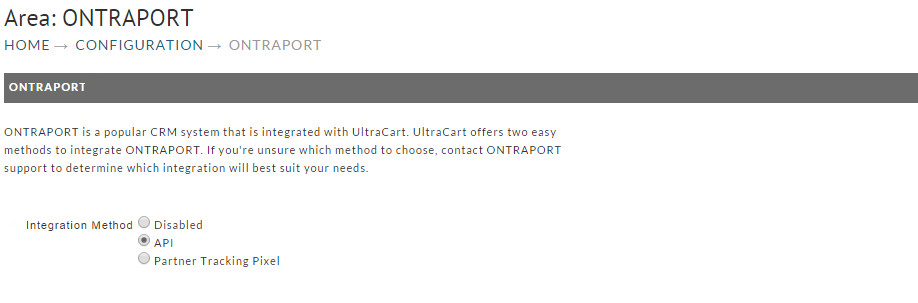
If you're unsure which method to choose, contact ONTRAPORT support to determine which integration will best suit your needs.
API Integration
If you select the API integration method the following screen will be presented.
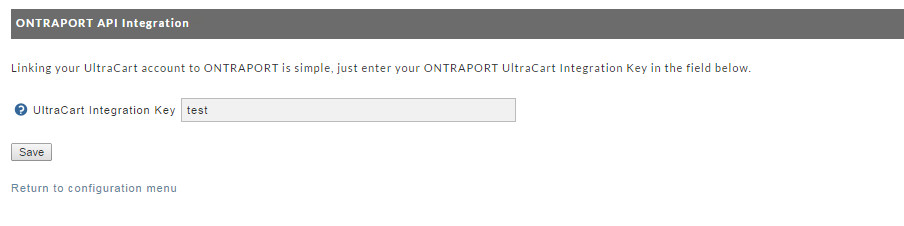
This will only be displayed to you if you have this integration method selected. The UltraCart Integration Key is obtainable from ONTRAPORT support.
Partner Tracking Pixel
If you are using OfficeAutoPilot's partner system then you will need to configure the conversion pixel on your account. After selecting the Partner Tracking Pixel method, you will see the following configuration screen. The required steps are outlined on this screen. You are basically entering the host name where your conversion pixel lives for each Theme.
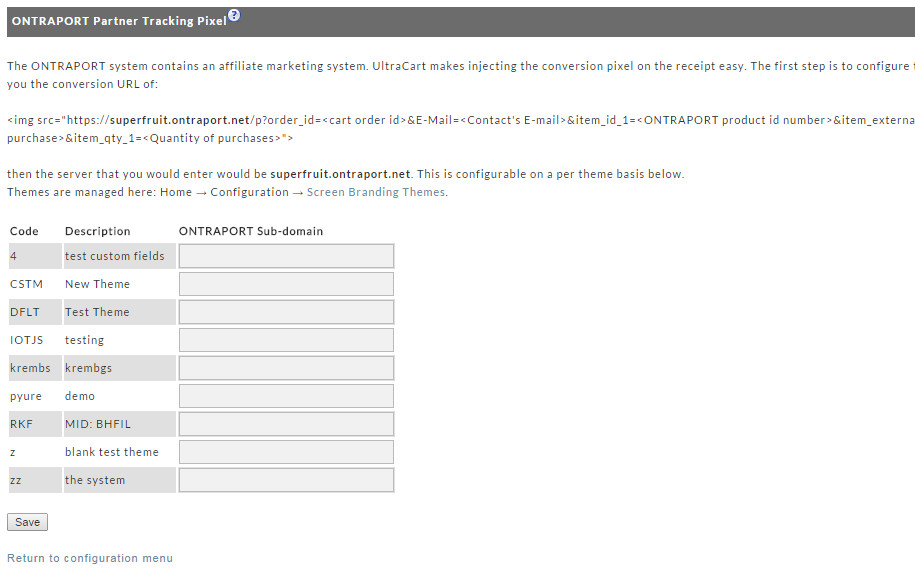
As shown in the screen shot above you copy the host name from the conversion URL provided by ONTRAPORT and enter it in the ONTRAPORT Sub-domain field provided for each Theme (It may be "ontraport.ontraport.com". You can verify that with ONTRAPORT).
Product Mapping
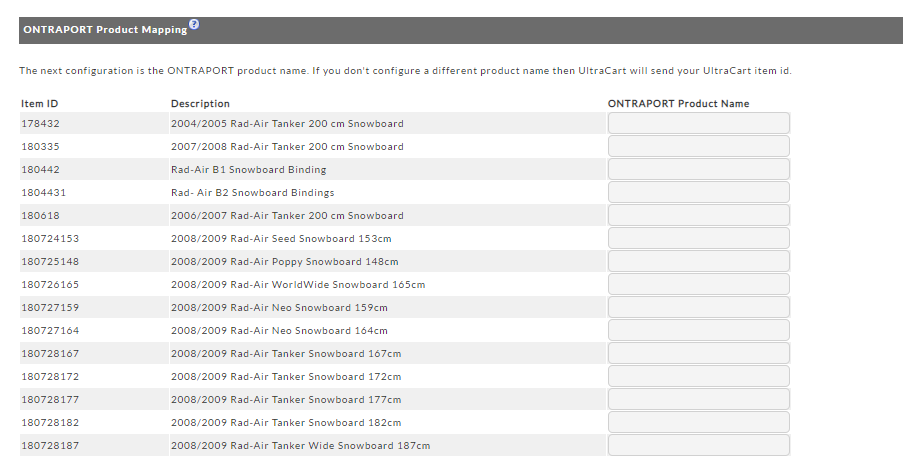
The next step, regardless of which integration method you chose, is to complete the ONTRAPORT Product mapping section.
If you don't enter a value here, UltraCart will send your UltraCart Item Id over as the ONTRAPORT Product Name. This is OK if the products are named the same in both systems. Otherwise, enter the OntraPort Product Name for each UltraCart ItemID.
Types of Information Sent to ONTRAPORT
UltraCart sends four types of information to OfficeAuloPilot:
| Type | Description |
|---|---|
| AffiliateId | The numerical identifier of the affiliate within our system. |
| Affiliate Approved | Possible values:
|
| Sale | Each time an order takes place, UltraCart sends the information to ONTRAPORT |
| Refund | Each time a refund takes place, UltraCart sends the information to ONTRAPORT |
| Auto Order Status | Auto Order Status - the status of their recurring order. Here are the possible values:
|
ONTRAPORT also can poll for the items configured on an UltraCart account. This allows ONTRAPORT to stay in sync with the items you're selling on your UltraCart store. Each time a transmission takes place the details (including the actual XML messages) appear in the log. See the next section for how to monitor the log.
Monitoring Log
At the bottom of the ONTRAPORT page is a transmission log which looks like the screen shot below.
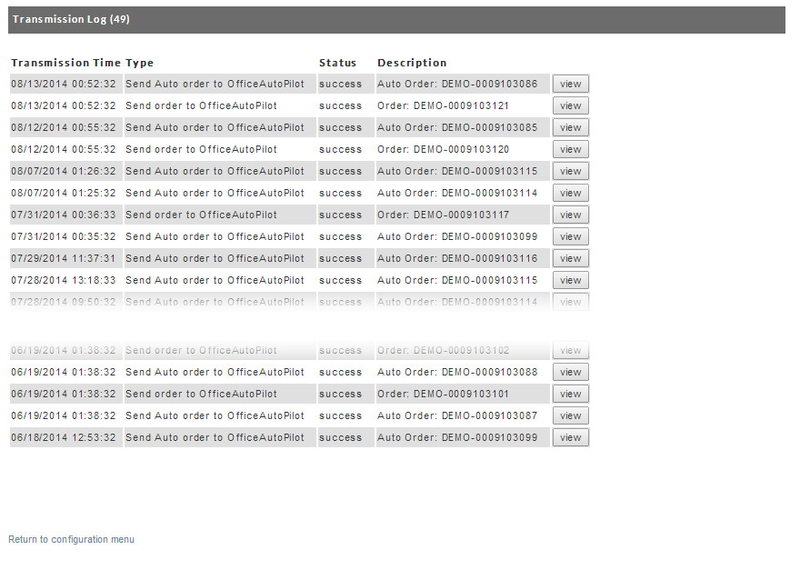
This log will show you everything that is being requested from or being sent to ONTRAPORT. It's important to monitor this log for errors when you first start integrating the two systems.
If you click on the view button next to each transmission you can see the full details as shown below.
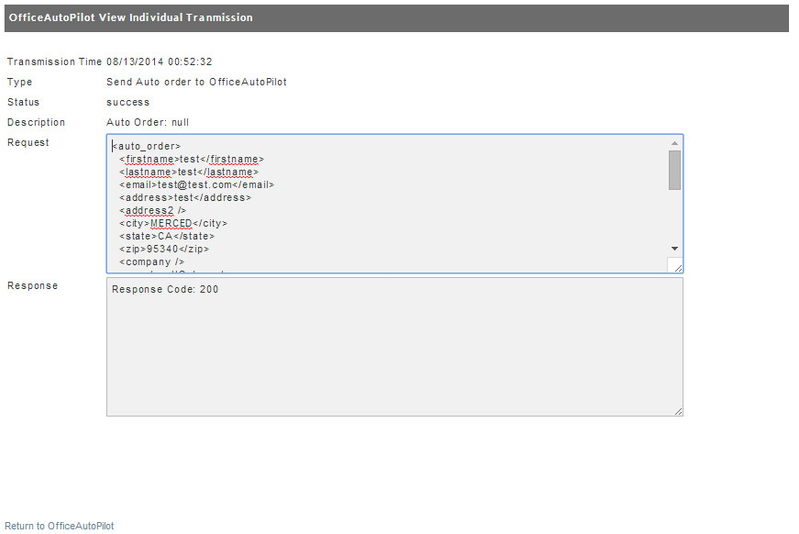
Notice that UltraCart will tell you:
- The type of transmission
- The status of the transmission
- Description of the transmission
- Actual request sent to ONTRAPORT server
- Response code received from ONTRAPORT server
If you have any problems with the integration, these transmission logs can be incredibly valuable to ONTRAPORT support personnel.
Frequently Asked Questions:
Question: When I compare the order report in UltraCart to the corresponding order report in OAP/Ontraport, I am finding a discrepancy. What would account for the difference?
Answer: When the order is transmitted over to OAP they do not store shipping and handling charge field. So that would be one thing to account for when reconciling the totals you see on orders in UC and the same orders in OAP. Also, if you place test orders, depending on how you have configured your test CC behavior, you may have those orders being transmitted over to OAP,, and at a later time you may choose to delete those orders from UltraCart. If you run your reports in that situation you may find a mis-match of the # of orders on each side. Never delete real customer orders from UltraCart, instead use the reject order option, so that there will remain an order record in US search results. If you choose to delete test orders, make sure to account for that when reconciling reports between the two systems.
Question: We often have orders with more than one item being sent to OAP. We recently found an order that had two items listed appropriately on the order (Lets call them ITEM 1 and ITEM 2) but when we checked at OntraPort, they showed ITEM 1 list twice. When we viewed the transmission in the Monitoring Log at UltraCart, ITEM 1 was indeed listed twice but ITEM 2 was not listed at all. How can that be?
Answer: There is a special Item field accessible while in the Item Editor called “oapProductid”. When populated, the data contained in that field will be sent to OntraPort in-place-of the assigned Item ID. We have found that some merchants forget to change the “oapProductid” field in Item Management when they “copy” (duplicate) an existing Item. End result is the product will show correctly on the receipt and Order record but will not be shown correctly when sent to Ontraport.
Question: I see information sent over to OntraPort on my items, but now orders are coming into UltraCart but no customer data is being sent to OntraPort.
Answer: UltraCart will only send order information over to OntraPort on a successful transaction. A successful transaction is when there is money associated to an order. So if your orders are in Accounts Receivable, Pre-Orders, Quote Requests, Pending Clearance, or Fraud Review there will be no transmission of data because no money has been transmitted.
Question: Our Ontraport transmissions have suddenly stopped, the log shows the following error: "Error 403 returned from HTTP server. URL: https://app.ontraport.com/receivers/ultracart.php?account_id=XXXXXXXXXX" We have not made any changes, why is this error occurring?
Answer: If your integration with Ontraport is setup via API, then you may want to try refreshing your API key (the API key have been known to go 'stale' through no fault of anyone's.) If that does not resolve the issue, we will need to gather additional details to provide to OntraPort support:
1. Example contacts who are seeing this issue?
2. The URL of the Order Form that is connected to Ultracart?
3. The name of that Form in ONTRAPORT if that is where it is built?
4. A screenshot of the Ultracart key from within your account so we can verify the key's match?
5. Navigate to the UltraCart OntraPort configuration page and click the "log" button the click the 'view' button for the logged transmission error.
6. Finally, which method are you using with Ultracart? API or Partner tracking pixel?
Question: How do I add tags to my items so that once purchased, the tag will be added to the newly created Contact in Ontraport, triggering a campaign or other follow up action?
Answer: Within Ontraport, create a campaign, and the trigger should be a new trigger Purchases (and select the product purchased) :

This trigger will add them to the campaign, and then you can add another step below that trigger which adds the contact to any tag of your choosing.