Storefront Privacy & Tracking

Storefront Privacy & Tracking

Overview

The Privacy & Tracking tab within the UltraCart StoreFronts menu is your central control panel for managing privacy settings, data collection, and third-party tracking integrations. This is where you configure how your StoreFront complies with privacy regulations and interacts with various analytics and advertising platforms.

The Privacy & Tracking tab is organized into the following sub-tabs, each managing a specific aspect of your StoreFront's configuration:

  • Privacy: Configure your store's privacy policy, cookie consent banners, and compliance with data protection regulations.

  • Google: Manage integrations with Google services, including Google Analytics, Google Tag Manager, and Google Ads.

  • Other: A catch-all tab for configuring third-party tracking scripts and integrations not specifically related to Google, such as Facebook Pixel.

  • Custom: Add custom tracking scripts or HTML to specific pages of your StoreFront.

  • Affiliate Networks: Configure tracking and parameters for your affiliate programs.

  • Advanced: Access advanced configuration options for privacy and tracking, often involving custom code or specialized settings.

Privacy

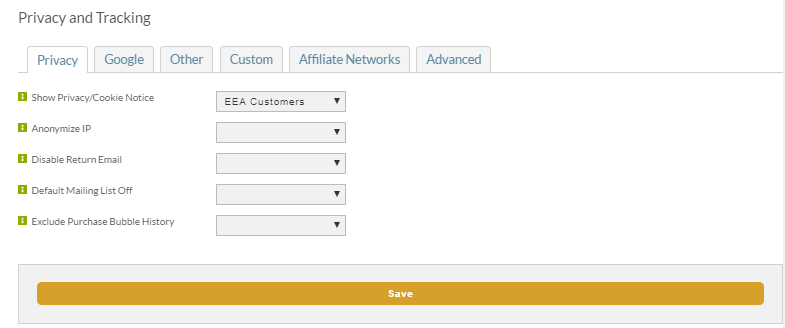
image-20250821-125342.png


The Privacy Sub-tab

The Privacy sub-tab in UltraCart's StoreFront configuration is where you manage customer data privacy settings, primarily to ensure compliance with regulations like GDPR and CCPA. These options give you granular control over how your store handles customer information.


Privacy Settings

The following settings can be applied to All Customers, EEA Customers (European Economic Area), or Non-US Customers via a dropdown menu, allowing you to tailor your compliance based on geographic location:

  • Show Privacy/Cookie Notice: This option enables a privacy and cookie notice banner on your storefront. You can choose to display this notice to all visitors or restrict it to those in specific regions, such as the EEA, to comply with local regulations.

  • Anonymize IP: When enabled, this setting truncates or anonymizes the IP addresses of your customers before they are stored or used for analytics. This helps protect customer privacy and is a common requirement under GDPR.

  • Disable Return Email: This setting controls whether the system sends automated return emails to customers. You can disable these emails for all customers or for specific regions, which may be useful for complying with certain email marketing regulations.

  • Default Mailing List Off: This option sets the default state of the marketing mailing list checkbox to "off" during checkout. Customers must explicitly opt-in to join your mailing list, a key requirement for GDPR compliance.

  • Exclude Purchase Bubble History: When enabled, this setting prevents a customer's purchase history from appearing in the "purchase bubble" that may be displayed to other visitors. This is a privacy-enhancing feature that ensures a customer's shopping habits remain private.

Disclaimer: These settings are tools to help you with compliance, but they are not a substitute for legal advice. GDPR and other privacy regulations are complex, and you should consult a legal professional to ensure your business fully complies with all applicable laws.

Configuring GDPR with specific tracking services

Besides the global  GDPR compliance settings located int he Privacy tab, each of the separate tracking services configured in the "Google" And "Other" tabs to Privacy and Tracking will also have an Opt into configuration field:

The Opt in to can be applied to: (select one)  Statistics / Prefernences / Marketing  required for (select one) All Customers/ EEA Customers / Non-US Customers 


Google

To configure Google-related tracking and conversion settings in UltraCart, navigate to the Google sub-tab within the Privacy & Tracking menu of your StoreFront. This section provides dedicated fields for integrating with various Google services, from basic analytics to more advanced tracking and advertising tools.


image-20250821-125754.png


Google Integrations

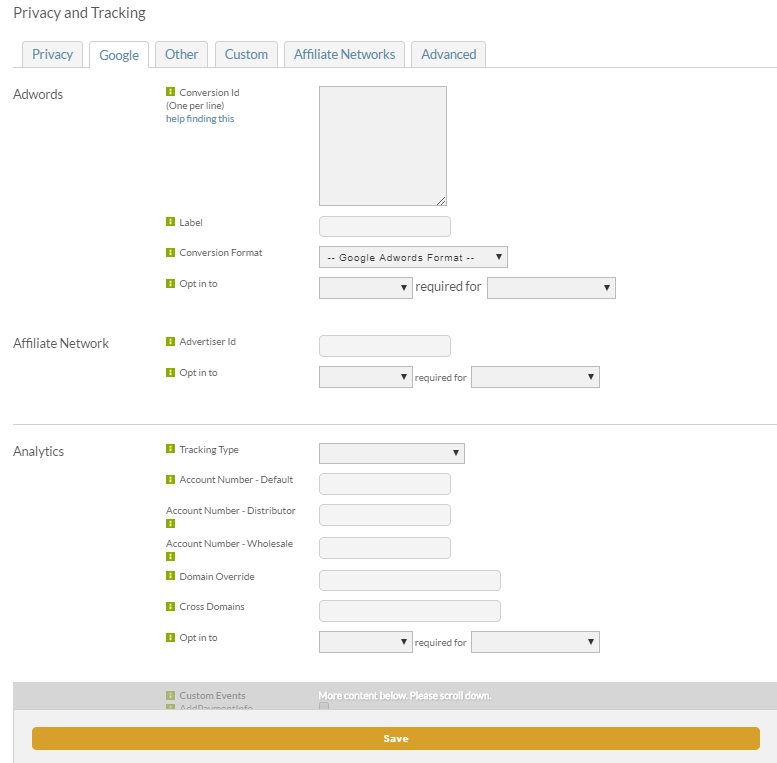
The Google sub-tab provides configuration options for the following services:

Adwords

This option allows you to set up conversion tracking for Google Ads. Instead of manually embedding complex code snippets, you simply enter your AdWords Conversion ID and Conversion Label. UltraCart automatically handles the tracking script on the checkout receipt page, ensuring that purchases are correctly attributed to your ad campaigns.

Affiliate Network

This integration is designed for connecting your UltraCart account with Google's affiliate tracking solutions. It allows for the accurate tracking of sales and commissions generated by your affiliate partners within the Google ecosystem.

Analytics

This is where you integrate Google Analytics 4 (GA4). You can connect your UltraCart StoreFront by entering your GA4 Measurement ID. UltraCart will then automatically inject the necessary tracking code to capture key ecommerce events, such as page_view and purchase. For more advanced tracking, you can also configure the GA4 API Secret to report offline conversions, such as those from upsells or recurring rebills, directly to Google.

Analytics Experiments

This section is for configuring Google Analytics Experiments, which are used for A/B testing on your StoreFront. While UltraCart has its own built-in A/B testing tools, this integration allows you to connect your experiments with your Google Analytics account for reporting and data analysis.

Tag Manager

This setting enables you to integrate your Google Tag Manager (GTM) container with your StoreFront. By providing your GTM Container ID, you can manage all your tracking tags (including Google Ads, Facebook Pixel, and other third-party services) from a single GTM dashboard, giving you a centralized and flexible way to deploy and manage all your marketing and analytics scripts.

Trusted Stores

The Google Trusted Stores program has been rebranded as Google Customer Reviews. This integration allows you to configure your Merchant Center ID to enable the Google Customer Reviews survey opt-in on your checkout page. This helps you collect valuable customer feedback and display seller ratings on Google.

Other

Third-Party Integrations

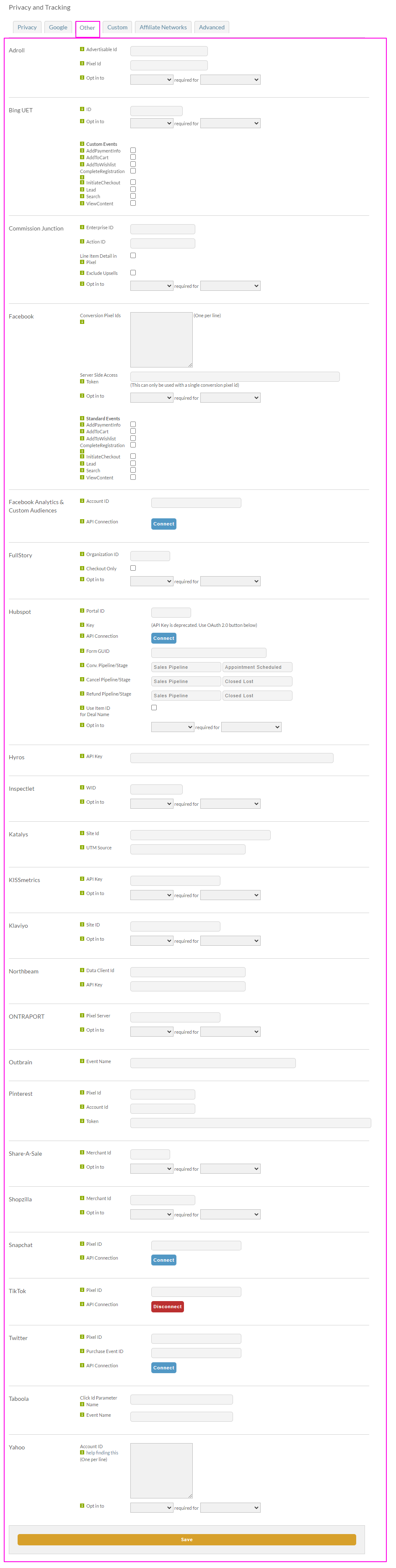
The Other sub-tab provides a centralized location to configure a wide range of third-party tracking and conversion pixels. This allows you to integrate your StoreFront with various advertising, analytics, and marketing platforms to track customer behavior and optimize your campaigns.


image-20250821-125929.png


Available Integrations

Below is a list of the third-party platforms that you can easily integrate with your UltraCart StoreFront:

  • Adroll: A retargeting and prospecting platform.

  • Bing UET: Bing's Universal Event Tracking for conversion tracking and remarketing.

  • Commission Junction: A popular affiliate marketing network.

  • Facebook: Allows you to configure the Facebook Pixel for ad tracking, conversion measurement, and campaign optimization.

  • Facebook Analytics & Custom Audiences: Used to track user behavior on your site for analytics and to build highly targeted Custom Audiences for your ad campaigns.

  • FullStory: A digital experience intelligence platform that captures customer interactions on your site.

  • Hubspot: A customer relationship management (CRM) and marketing automation platform.

  • Hyros: A marketing attribution and analytics tool that tracks customer journeys.

  • Inspectlet: Provides session recordings, heatmaps, and form analytics.

  • Katalys: An e-commerce analytics and attribution platform.

  • KISSmetrics: A behavioral analytics platform focused on customer actions.

  • Klaviyo: An e-commerce marketing automation platform for email and SMS.

  • Northbeam: An attribution platform for e-commerce marketers.

  • ONTRAPORT: A business automation and marketing platform.

  • Outbrain: A recommendation technology platform for content discovery and monetization. It helps media companies compete with larger "walled gardens" by improving audience acquisition and engagement.

  • Pinterest: For tracking conversions and user behavior from your Pinterest ad campaigns.

  • Share-A-Sale: An affiliate marketing network.

  • Shopzilla: A shopping comparison service.

  • Snapchat: For tracking conversions and optimizing ad campaigns on Snapchat.

  • TikTok: For tracking conversions and user actions from TikTok ad campaigns.

  • Twitter: For conversion tracking and audience targeting on Twitter.

  • Taboola: A content discovery and native advertising platform.

  • Yahoo: For integrating with Yahoo's tracking and analytics services.

Each of these integrations typically requires you to enter a specific ID or pixel code provided by the third-party service. UltraCart then automatically injects the necessary tracking script onto your StoreFront pages, simplifying the implementation process.

Custom

Custom Tracking and Scripts

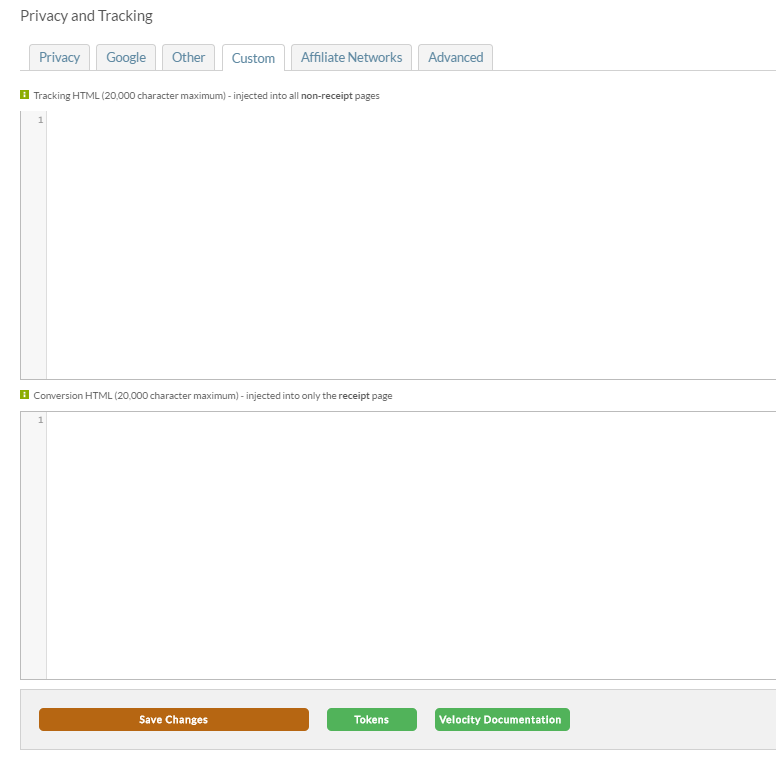
The Custom sub-tab in UltraCart's StoreFront configuration allows you to manually add tracking pixels and scripts to your store, providing flexibility for integrations that are not built into the Other sub-tab. It is divided into two distinct sections, each with a 20,000-character limit.


image-20250821-130218.png

Section 1: Tracking HTML

This section is for scripts that should be injected into all non-receipt pages of your StoreFront. This is the ideal place for general analytics and tracking pixels that monitor customer behavior throughout your site, rather than just at the point of purchase.

  • Purpose: To track events such as page views, adds to cart, and other actions that precede a completed order.

  • Use Cases:

    • General site-wide analytics scripts (e.g., custom code for a service not listed in the Other tab).

    • Third-party tracking pixels that are not for conversion (e.g., a retargeting script that should fire on every page).


Section 2: Conversion HTML

This section is specifically for scripts that should be injected into the receipt page only. These scripts are designed to "fire" upon the completion of a purchase, making them perfect for tracking order conversions.

  • Purpose: To measure successful transactions and attribute sales to marketing campaigns.

  • Use Cases:

    • Conversion pixels for ad platforms like Google Ads or Facebook, if not already configured in the other tabs.

    • Scripts that send order data to a third-party analytics or reporting service.


What Are UltraCart Custom Tokens?

UltraCart custom tokens are dynamic placeholders you can use in various parts of the platform to display specific, real-time data. These tokens act as variables that are replaced with actual information from an order, customer profile, or product when a page or email is generated. They are a powerful tool for personalizing content and automating data transfer.

They allow you to dynamically insert relevant information like a customer's name, an order ID, or product details into your:

  • Email templates

  • Confirmation pages

  • Custom HTML/JavaScript snippets

  • Tracking scripts

For example, using the [BillingFirstName] token in an email template will automatically replace the token with the customer's first name, making the email feel personalized and professional.


How They Work

Tokens work by referencing a specific data point within the UltraCart system. When the system processes a transaction, generates a report, or sends an email, it looks for these tokens and replaces them with the corresponding information from the current context (e.g., the specific order that was just placed).


Token Categories

The provided list of tokens can be broken down into the following key categories:

Category

Description

Example Tokens

Customer Information

Details about the customer who placed the order.

[BillingFirstName], [Email], [ShippingPostalCode]

Order Details

Specific information related to the order itself.

[OrderId], [Total], [TotalQuantity]

PassThru

PassThru payload

[passthru<name>]

Product Information

Data about the items purchased in the order.

[ProductDescriptions], [ProductUnitCosts], [ProductQuantities]

Payment & Billing

Information about how the order was paid for.

[PaymentMethod], [ChargeAppearsOnStatementAs]

Conditional Logic

Tokens that conditionally display content based on criteria.

[IfPurchased=<ItemId>], [IfPaymentMethod=<Method>]

Marketing & Tracking

Tokens for affiliate tracking and analytics.

[AffiliateId], [AffiliateSubId], [OmnitureProducts]

Export to Sheets


Why They Are Important

Using custom tokens is essential for creating a seamless and personalized customer experience while also ensuring accurate data tracking for your business.

  • Personalization: Dynamically generated content, such as a thank you email that addresses a customer by name, builds a stronger relationship and brand loyalty.

  • Automation: Tokens automate the process of inserting specific data into communications and scripts, eliminating the need for manual data entry and reducing the risk of errors.

  • Accurate Tracking: For developers, tokens are crucial for passing accurate order and customer data to third-party tracking services (e.g., Google Analytics, affiliate networks) via custom scripts on the receipt page. This ensures you can correctly attribute sales and measure the return on your marketing spend.


Preventing Script Relocation

By default, UltraCart optimizes page speed by automatically consolidating JavaScript files and moving them to the bottom of the page to load after other content.

If you have a script that needs to load in a specific location (e.g., at the top of the page), you can prevent this optimization by adding a special data attribute to the script tag.

Example:

<script src="/js/myscript.js" data-uc-ignore></script>

Using UTM Shortcodes

This tutorial will guide you through the process of creating and using UTM Shortcodes in UltraCart to simplify your campaign tracking and prevent data loss.


Overview

UltraCart’s UTM Shortcodes solve the problem of stripped UTM parameters by allowing you to create clean, simple URLs with a shortcode instead of long, detailed UTM strings. This is especially useful for campaigns where external platforms may truncate or remove standard UTM parameters. On the backend, UltraCart processes the shortcode, assigning the correct UTM parameters for accurate analytics and reporting.

image-20250821-130749.png


What You'll Need

  • Access to your UltraCart dashboard.

  • An active UltraCart StoreFront.


Steps to Configure a UTM Shortcode

Step 1: Navigate to UTM Shortcodes

  1. In the UltraCart dashboard, select the StoreFront for which you want to track ad traffic.

  2. Click on Privacy and Tracking.

  3. Select the UTM Shortcodes tab.


Step 2: Create a New UTM Shortcode

You will be presented with an interface to define your new shortcode.

  1. Short Code: Enter a descriptive, easy-to-remember shortcode. This is the parameter you'll use in your URLs.

    Example: summer2024 or facebook_promo

  2. Description: Add a brief description to help you identify the campaign.

    Example: Facebook Summer 2024 Promo

  3. Assign UTM Parameters: Fill in the corresponding UTM fields that this shortcode will represent.

    • UTM Campaign: summer_sale

    • UTM Medium: social

    • UTM Source: facebook

    • UTM Content: ad_banner1

    • UTM Term: summer_discount

    • UTM ID: A unique ID for more granular tracking.

  4. Click Save.

Your shortcode is now active and ready to be used in your campaign URLs.


Step 3: Implement the Shortcode

Instead of a long URL with standard UTM parameters, you can now use a clean, simple URL with your new shortcode.

  • Standard URL: https://myurl.com/?utm_campaign=summer_sale&utm_source=facebook

  • With Shortcode: https://myurl.com/?uc_utm=summer2024

UltraCart automatically processes the uc_utm parameter on the backend and applies the correct tracking data.


Using UTM Shortcodes on External Sites

If you use a third-party website with UltraCart's Checkout-Only Mode, you can still leverage UTM Shortcodes as long as you have UltraCart Analytics Deployed. This ensures proper tracking even if your external site's URLs are modified.

To do this, add the UTM shortcode along with the standard UTM parameters to your external links.

URL Format:

?usc=sample_short_code&utm_source=facebook&utm_medium=social&utm_campaign=sale

Note: Even if ad blockers or privacy tools on the external site strip the standard UTM parameters (utm_source, utm_medium, utm_campaign), the usc (UltraCart Shortcode) parameter will remain intact. As long as UltraCart analytics is installed on your checkout pages, the shortcode will be processed, ensuring accurate attribution data is still applied.


Affiliate Networks

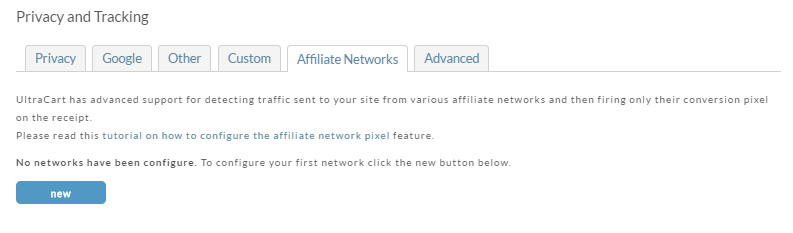
UltraCart has advanced support for detecting traffic sent to your site from various affiliate networks and then firing only their conversion pixel on the receipt.
Please read this tutorial on how to configure the affiliate network pixel feature.

image-20250821-131043.png

Advanced

Advanced Settings

The Advanced sub-tab in UltraCart's StoreFront configuration contains specialized settings for managing tracking, customer redirects, and data security. These options provide fine-grained control over your storefront's behavior, particularly during the checkout and post-purchase process.


Configuration Options

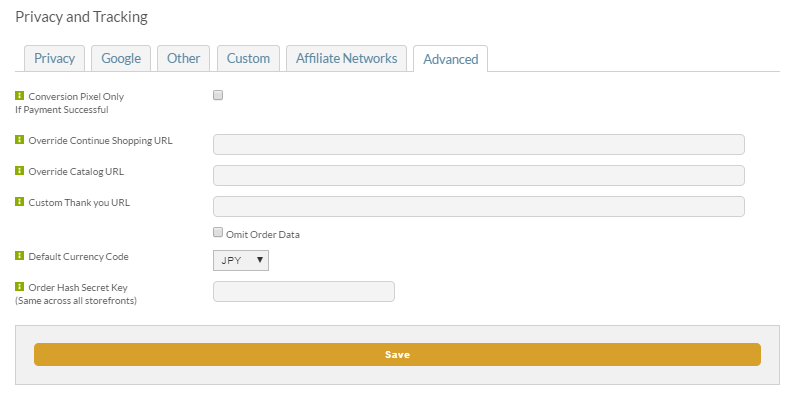
  • Conversion Pixel Only If Payment Successful (checkbox): This setting ensures that conversion tracking pixels fire only when a customer's payment is successfully processed. When this box is checked, any custom conversion scripts on the receipt page will not run for failed or declined transactions, preventing false positives in your analytics and ad campaign reporting.

  • Override Continue Shopping URL (field): This field allows you to specify a custom URL for the "Continue Shopping" button in the shopping cart. Instead of returning to the previous page, customers who click this button will be redirected to the absolute URL you enter here.

  • Override Catalog URL (field): Similar to the previous setting, this field lets you define a custom URL for the "Continue" button that appears on the receipt page. This is useful for guiding customers to a specific page or product category after they complete their purchase.

  • Custom Thank You URL (field): This powerful setting gives you complete control over the post-purchase experience. By entering an absolute URL here, you can redirect customers to a completely custom thank you page on an external site rather than showing them the default UltraCart receipt page.

  • Default Currency Code (field): This field defines the default currency for your storefront, using a three-letter ISO currency code (e.g., USD, EUR, GBP). This setting is especially useful for businesses operating in a single currency.

  • Order Hash Secret Key (field): The order hash is a unique, secure identifier for each order. This field contains a secret key that is used to generate the hash. The key is consistent across all of your storefronts and is primarily used for validating the authenticity of order data when communicating with external systems or APIs.

image-20250821-131206.png


Frequently Asked Questions

Question: At what point in the checkout process do the configured tracking and conversion scripts render?

Answer: If the checkout is configured with a custom Thank You Page, then the conversion pixels will fire prior to the handoff to the external thank you page. Otherwise, the pixel are injected into the receipt page.

Question: I'm looking my upsell offers and would like to insert tracking snippet, but I don't see a way to access page outside of the body, how can I add my snippet?

Answer: UltraCart will insert the configured tracking script snippets into every page of the page. However, "Conversion pixels may only be placed into the receipt page that is loaded at the end of a purchase.

Question: Can UltraCart provide sample Privacy Policy and/or Terms of Service copy to use in our storefront?

Answer: UltraCart can't give legal advice or provide stock templates for that type of content.  You may wish to consult with a business attorney regarding the specific wording of each document.   However, there are also many different TOC/Privacy policy generator companies out there that you can consult. 

Question: We recieved an email from UltraCart indicating that our Facebook Analytics connection expired, instructing us to disconnect and then reconnect it. I’m trying to refresh the connection, but was redirected to the following message:

image-20250708-162807.png


‘App not active’ - This app is not accessible right now and the app developer is aware of the issue. You will be able to log in when the app is reactivated.' how do I resolve this issue?

Answer: In this situation, you must be added as a test user to the Facebook application.  Please gather and send us your Facebook ID to support@ultracart.com including your UltraCart merchant ID and a note about the error with connecting to Facebook analytics:

To find your Facebook ID (FBID), follow these steps:

  1. Using Your Profile URL:

    • Go to your Facebook profile.

    • Look at the URL in your browser's address bar. It typically looks like facebook.com/yourusername or facebook.com/profile.php?id=123456789.

    • If it shows a number after id=, that’s your FBID (e.g., 123456789).

    • If it shows a username, proceed to the next method.

  2. Using the Source Code:

    • Open your Facebook profile page in a browser.

    • Right-click anywhere on the page and select "View Page Source" (or press Ctrl+U on Windows, Command+U on Mac).

    • Search for fb://profile/ or userID in the source code (use Ctrl+F or Command+F).

    • The number following fb://profile/ or associated with userID is your FBID.