Item Management: Kit Items

Item Management: Kit Items

What is a Kit Item?

A Kit Item in UltraCart is a unique product that bundles one or more existing "regular" store items together. Merchants commonly use kits to sell multiple products as a single package, often at a special, combined price. The kit item itself has a unique Item ID, and when a customer purchases it, the system automatically decrements the inventory for all the individual items included in the kit.

image-20250822-130137.png

Benefits of Using Kit Items

Using kit items offers several significant advantages for inventory management, shipping, and sales strategy:

  • Simplified SKUs: Kits allow you to represent a group of products with a single SKU. This simplifies your product catalog and makes it easier for customers to purchase a complete set of items.

  • Accurate Inventory Management: When a kit is sold, UltraCart automatically and accurately adjusts the inventory levels of all the individual component items within it. This prevents overselling and ensures that your stock levels are always correct.

  • Streamlined Fulfillment: For warehouses and fulfillment centers, a kit is treated as a single product on the order. This simplifies the picking and packing process, as the fulfillment team only needs to pick the individual components of the kit rather than searching for multiple, separate items on the order.

Creating a Kit Item

Kit items are now managed directly within the main Item Management section. You can create a new kit item and include items from any folder in your catalog.

Step 1: Navigate to the Item Management

  1. From the Main Menu, navigate to Item ManagementItems.


Step 2: Create a New Kit

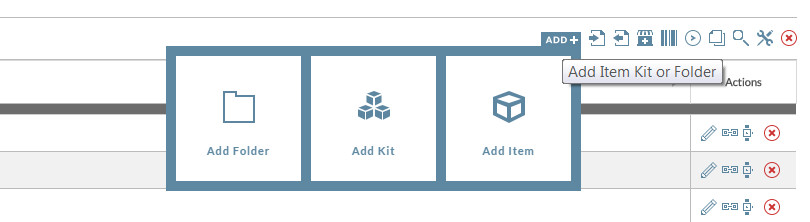
  1. From the Item Management page, click the Add button in the top-right corner.

  2. Follow the prompts to define the new item. When prompted to select the item type, choose Kit.

  3. Assign a unique Item ID and other relevant details for the new kit.

  4. Specify the individual items that will be included in the kit and their respective quantities. You can pull items from any folder within your item management system.


Note: A kit item is only visible from the folder level where it was originally created. For easier management, some merchants choose to create and store all their kit items in a single, dedicated folder, such as the Main Filing Cabinet.

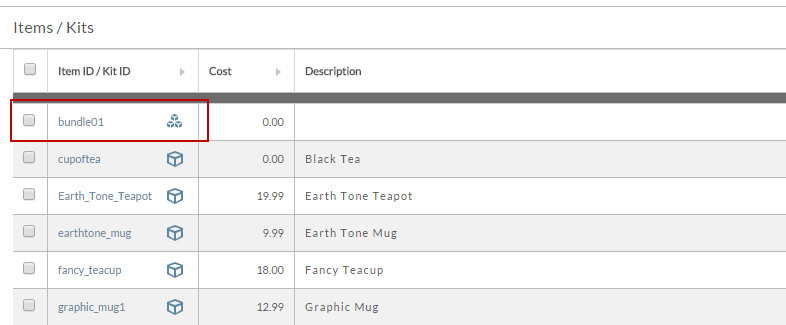
Once created, the kit item will appear in your item list, ready to be added to your storefront or used in orders.
 

image-20250822-130626.png

Upon either click the "new" button or clicking on the itemID of an existing kit item, opens the kit item editor.

When entering the editor for a new kit item, you'll see a new section within the item editor for kit components.

Kit Editor
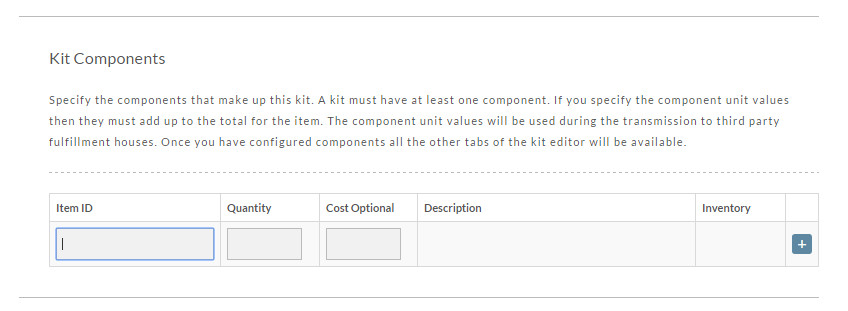
image-20250822-130745.png


The component section is where you list the items that are part of the kit item. When Kit items are sold the inventory is deducted from the quantity in stock for each configured component item.

To add a new component to a kit item, simply provide an item ID, quantity, and then click on the + button to add the item. This will also force a new field to display to add more components.
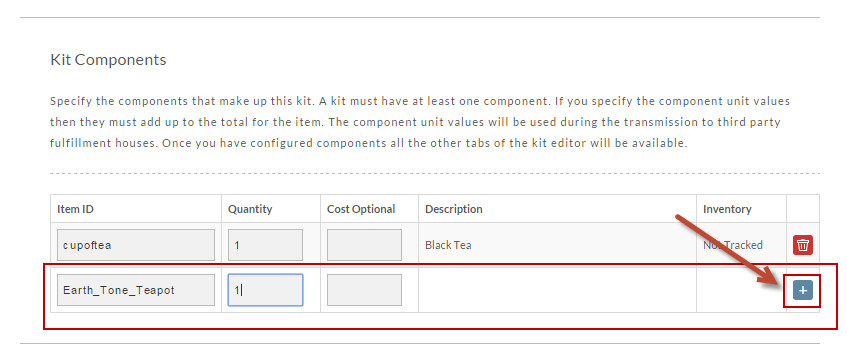
image-20250822-130825.png

Field Name

Discription

Field Name

Discription

Item ID

This is the Item ID of the component being added by the kit.

Quantity

The quantity of the item being added by the kit.

Optional Cost

The cost of the item being sent to the fulfillment center for the component. Note: This is important if you are using your fulfillment center for invoicing as UltraCart will simply try to generate an estimated cost based on the kits value for each item.

Digital Delivery

You can add a digital delivery item as either a kit component or into the digital delivery tab of the kit itself.

 
If you want to offer free shipping for the entire kit, place a check in the box (click) to the right of the "Free Shipping" prompt to. Then click the "Save" button.


Frequently Asked Questions

How does a kit item transmit to fulfillment companies or ShipStation?

When an order containing a kit item is transmitted to a fulfillment partner (such as ShipStation or a 3PL), UltraCart sends the individual component items and their quantities. The parent kit Item ID is not transmitted as a single line item.

Examples:

  • A kit with Item ID heart that contains one unit of component BFO and one unit of component CO transmits as two separate line items: BFO (quantity 1) and CO (quantity 1). The fulfillment system does not receive a line item named heart.

  • A kit with Item ID CO3 that contains three units of component CO transmits as three individual units of CO. The fulfillment system does not receive a single line item named CO3.

This design ensures pickers pull the correct physical products and quantities directly from inventory. Most integrations, including ShipStation, automatically expand kits to display the component items during order export.

Recommendation: Create all regular component items first, then build the kit that references them. Test with a sample order to confirm the transmission format matches your fulfillment provider's requirements.

What happens to inventory when a kit item is sold?

UltraCart automatically deducts the configured quantities from each component item's inventory when a kit is purchased. The kit item itself does not maintain separate inventory. It functions as a selling and pricing convenience that drives precise, component-level inventory adjustments.

Can digital items be included in a kit?

Yes. A digital delivery item can be added as a component in the Kit Components section or configured separately using the Digital Delivery tab inside the kit item editor. This supports mixed physical and digital bundles under a single kit SKU.

How do I enable free shipping for a kit?

In the kit item editor, check the box next to the Free Shipping prompt. Click Save to apply the setting. Free shipping then applies to any order that includes the kit item.

Should component items exist before the kit is created?

Yes. Create the regular store items (components) and assign stable Item IDs first. Then create the kit item and reference those existing Item IDs when adding components. This approach ensures correct linkage for inventory tracking, fulfillment exports, and reporting.