Order Retention
- Perry Tew
- Chris Torigian
- Former user (Deleted)
- Hunter Schaeffer
Navigation
Configuration → Order Management → Order Retention
Introduction
Marketing to your existing customer base can be extremely effective. In order to help you market to new customers or remarket to older customers, UltraCart will retain your order history for one year absolutely FREE. That way if you want to send an e-mail blast our to customers who haven't purchased in a long time you can. You can also setup Auto-Order sequences at anytime with this historical information.
If you would like to retain your order history beyond the free (one) year period, you need not inform UltraCart as such, it is defaulted to infinite years as per our Terms and Conditions. Please note that there is a $7 per month charge for each additional year of data actually retained. You will receive a monthly email notice 30 days prior to an order that is older than your threshold being deleted. This will provide you an opportunity to adjust your threshold if desired.
If you decide to decrease the number of years that you are holding in UltraCart, please remember that you cannot get that information back once its deleted by the system. So to make sure you don't lose this valuable information, please perform an Order download for the historical information that will be deleted on a regular basis. UltraCart runs on a monthly calendar so every new month the oldest month gets deleted from the system. We find it is best to perform your downloads on a monthly or yearly basis so that you will remember with each new month or year to save the old order information before it gets deleted.
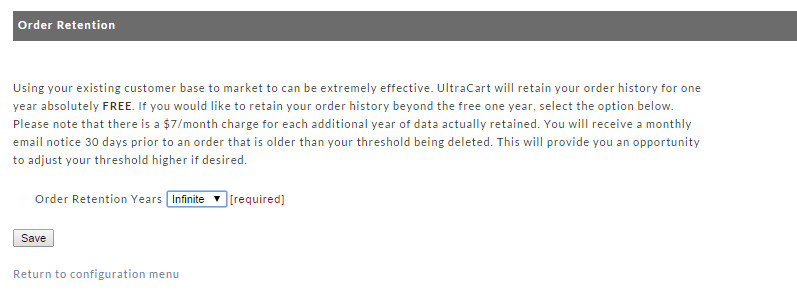
Select the number of years you want your records retained at UltraCart in the drop-down menu. Click the "Save" button when finished.
About Auto Orders
Active (enabled) auto orders will be retained as long as they are active. Once they are disabled/inactive they will become available to be purged at the end of that month's billing period.
About Rejected Orders
Rejected order are retained for 1 year only.