XML Postback
- Perry Tew
- Hunter Schaeffer
- Loyd James (Unlicensed)
receive an xml copy of an order after it is placed.
UltraCart Webhooks supercede the XML Postback. They are superior in every way.
Please see the API page for help using webhooks.
XML Postback
UltraCart's XML Post Back feature gives merchants the opportunity to have orders automatically "posted" to their server shortly after the order is placed. Orders will be transmitted in XML (Extensible Markup Language) format. Once received, they can have any number of functions automatically performed based on any parameters within the order.
Merchants might consider utilizing the post back function for the following reasons:
- Automatically receive orders shortly after they are placed.
- For doing any validation or other processing on their server side.
- Receive updated order status automatically (optional).
Requirements
The XML Post Back feature should only be used by advanced merchants with software development skills or with programmers at their disposal. Presently, UltraCart does not provide script templates.
There are two requirements to make the XML Post Back possible. A merchant must:
- have a web server that supports HTTPS (secure sockets), and
- create (or have created) a script that will;
- receive the order (one order per post),
- perform the desired functions, and
- send a "return success" code 200 to UltraCart.
XML Postback Script on Your Server
Several languages can and are used for receiving and performing functions with the XML format. Some examples are; PHP, Perl, Python, C#, ASP, Java, Ruby, and Cold Fusion. Here is an example PHP Script that you can use to get started. You will need to embellish it with your back-end business logic.
The XML message posted back is equivalent to manually exporting 1 order in the XML W3C Schema format from Order Management → Export Orders.
Programmers need to be aware that the XML is within the HTTP body, not in parameters.
Post Back Configuration
Prior to configuring the Post Back feature insure that you have your script in place on your server. Once that is completed, log in to your UltraCart account and navigate to:
Main Menu → Configuration → Back Office → XML Post Back
Once you click on the XML Postback link, the following screen will appear:
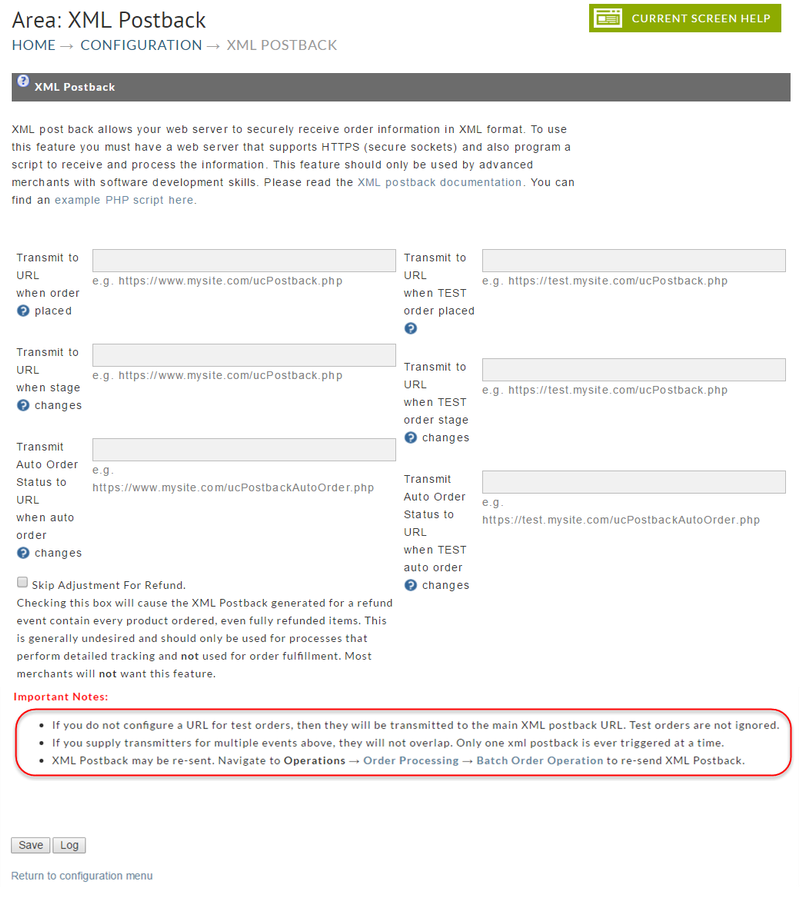
Most merchants will chose to use one or the other of the two options listed here. You may use both. The URL's tell UltraCart where to post the XML file to and the name of the script itself.
UltraCart will not send duplicate notifications. If you configure the second option (stage changes), you will not receive any notifications via the first option. Instead, when an order is placed, you'll receive a postback with the appropriate stage change (depends on the status/success of the order).
First Option: Transmit to URL when order placed
Placing the URL into this field will tell UltraCart to post back any order when and only when the order is created. UltraCart will continue to post back the order to your server until it receives a "return success" code (200).
Second Option: Transmit to URL when stage changes
Placing the URL into this field will tell UltraCart to post back any order when the status (stage) of an order changes.
The status will appear in the current_stage field. The status (stage) values are:
current_stage status | Stage |
|---|---|
AR | Accounts Receivable |
CO | Completed Order |
IN | Inserting (Placed Order) |
PC | Pending Clearance (of Check Orders, and Amazon Payment orders) |
PO | Pre-Order |
QR | Quote Request |
QS | Quote Sent |
REJ | Rejected |
SD | Shipping Department |
Once you've entered the URL into the appropriate field, click on the "Save" button at the bottom of the screen. Your configuration is complete.
Third Option: Transmit Auto Order Status to URL when auto order changes
Placing the URL into this field will tell UltraCart to post back when an auto order changes.
If you use the second option "Transmit to URL when stage changes" then UltraCart will also send you an XML postback when a refund occurs. When refunds occur the order can be in multiple stages (SD or CO typically) so you will want to look for the following elements in the XML:
subtotal_discount_refunded
subtotal_refunded
other_refunded
tax_refunded
shipping_handling_refunded
buysafe_refunded
total_refunded
refund_dts
If a refund has occurred, the elements "total_refunded" and "refund_dts" will always exist. The other elements mentioned above will exist if that component of the order was refunded.
Passing Postbacks To Mutliple URLs
Multiple Postback URL's
If you need to configure multiple XML Postback URL's, separate each URL with a space.
PLEASE NOTE:
While multiple URL's can be configured, we don't recommend more than 2-3 URL's, because all of the configured scripts must succeed. If any one of the scripts returns an unsuccessful reponse, UltraCart will retry the postback to each of the configured postback URL's.
Log
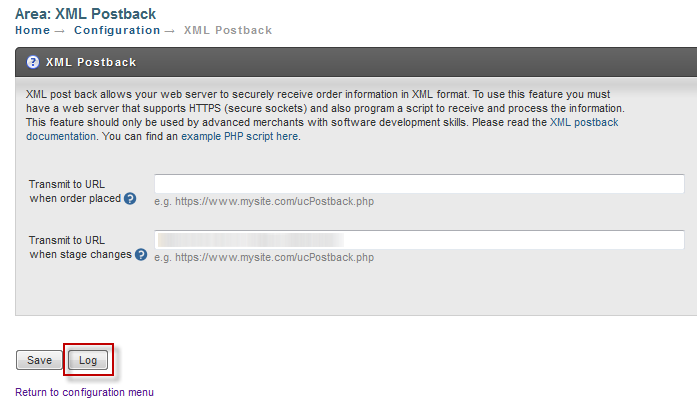
Since the information sent to your server is critical to your business operation, UltraCart records logs of each transmission. To access the logs
click on the Log button as shown below.
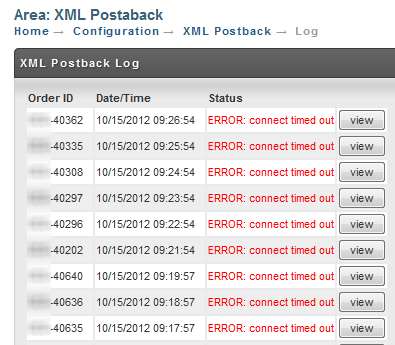
When you click on the log it will show you the order id, timestamp, and result for each transmission. Notice that we can quickly see that UltraCart
is having trouble connecting to this server.
For each transmission you can see what is sent to your server and what is returned as shown below.
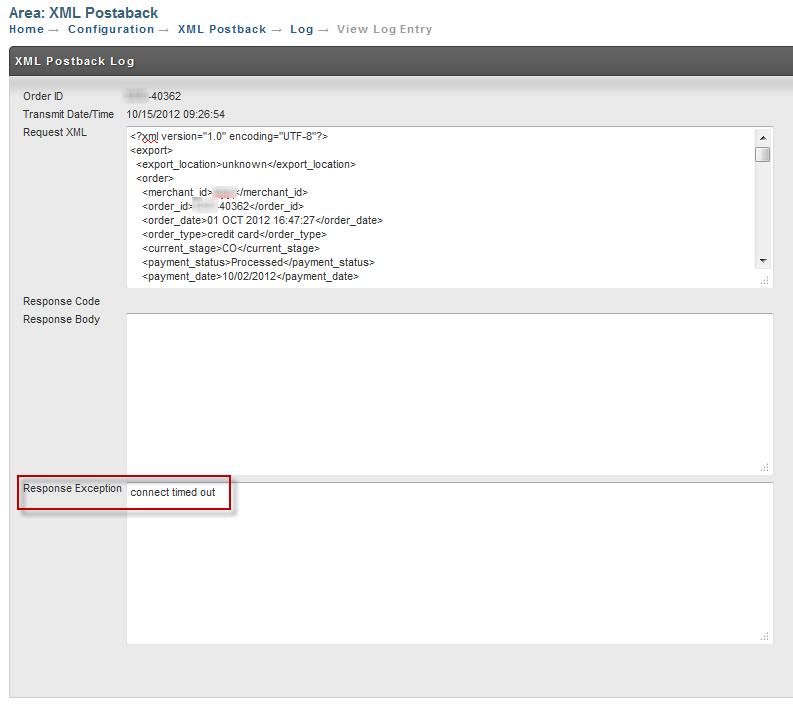
Notice that UltraCart is logging the response back from your server. It only cares about the 200 result code to determine success, but logging
the response from your server allows you to output information that you can review in the logs for debugging purposes.
Restarting Postbacks After Errors Have Halted Postback Processing
If UltraCart encounters 50 consecutive errors from your server, it will disable the XML postback and email you. The transmissions will queue up until you edit your XML Postback configuration.
After reviewing the logs to determine the cause of the errors. To restart the processing of the queued orders, re-save the XML PostBack settings (Click the save button on the XML Postback configuration page.)
Understanding HTTP Errors
The table below covers common HTTP result codes that UltraCart may encounter from your server.
| Code | Meaning |
|---|---|
| 200 | OK |
| 301 | Moved Permanently |
| 302 | Moved Temporarily (Redirect) |
| 400 | Bad Request |
| 401 | Unauthorized |
| 403 | Forbidden |
| 404 | Not found (the script doesn't exist on your server) |
| 405 | Method Not Allowed (Your script doesn't support POST) |
| 500 | Internal Error (your script blew chunks) |
The complete list can be found at http://www.w3.org/Protocols/rfc2616/rfc2616-sec10.html
How do I resend historical data to my server via XML postback?
Identify the first and last order id for the range of data that you want to resend to your new XML postback URL. Use the batch order operation utility to populate the XML postback queue.
Refunds
Orders with partial refunds will report the item Id's of the refunded items, whereas complete refunds will not include the item Id's by default.
Please Note
If you need the complete refunds to report the item ID's in the order, contact UltraCart by emailing support@ultracart.com stating your UltraCart MerchantID requesting that we enable the merchant property "XML Postback - Skip Adjustment for Refund".
With this property is enabled, it will prevent refunded items from being removed from the XML postback, so you will see these items in your refund transaction XML packet.
Pay close attention to these optional elements that will indicate the refunding of the item:
- quantity_refunded
- total_refunded
Handling Read Timeouts
The XML postback process will wait at most 60 seconds for a response from your web server. Do not try and perform complex processing of the XML postback document on your receiver. Simply queue up the XML document in a persistent storage (database, Redis, SQS, etc.) and then perform your more complex processing in a decoupled fashion. This will allow you to receive a greater velocity of XML postbacks from UltraCart and fan out the processing of those postbacks appropriately.