Price Update Tool
- Perry Tew
- Former user (Deleted)
- Loyd James (Unlicensed)
- Chris Torigian
Introduction
This is an excellent utility for easy updating of your store item prices. The Price Update Tool displays your items in a spreadsheet fashion listing the price you have configured for retail as-well-as any Pricing Tiers (wholesale, etc). Note: This utility will display up to 2,000 records (items) only.
Navigation
Main Menu → Item Management → Price Update
When you click on the Price Update link, UltraCart will list all your items alphabetically. In the example below, store items are show along with the existing Retail and one configured pricing tier - Wholesale. The folder hierarchy is not displayed.
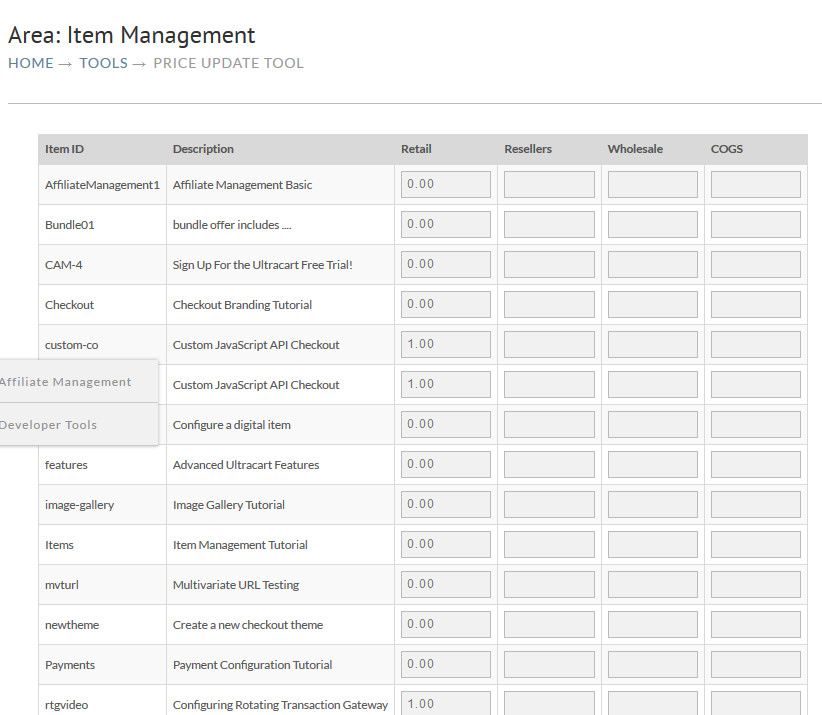
Using the mouse, select the amount in the box you wish to change. Delete it and enter your new price. Continue the same process for all the prices you wish to change (update). Click the "Save" button at the bottom when finished.
This tool is also an easy method for setting Pricing Tier amounts. Once you've created your pricing tier, you can use the Price Update Tool to easily set the Pricing Tier Amounts for any or all of your items.
If you have a large number of items that you need to update pricing on, you can also take advantage of the Batch Item Export then change them in the spreadsheet and use the Batch Item Import to put them back in UltraCart.