Store Wide Item Options
Overview
Store-Wide Item Options are a feature designed to streamline the configuration of product variations that apply to a large portion of your inventory (e.g., Color, Size, Material).
Defining the same option (such as "Color") repeatedly for hundreds or thousands of individual items is inefficient and prone to error. UltraCart solves this by supporting the concept of a store-wide item option, allowing merchants to define the option once and then easily associate it with multiple items across their catalog.
Key Benefits
Efficiency: Define common options once, significantly reducing setup time compared to defining options item-by-item.
Consistency: Ensures that the option name, display values, and pricing adjustments are uniform across all associated items.
Centralized Management: Updates to a store-wide option (e.g., adding a new color, changing a price adjustment) only need to be made in one central location, and the changes are immediately reflected across all linked items.
Scalability: Essential for merchants with large catalogs or those who frequently add new products that share common option sets.
By leveraging store-wide options, you maintain a clean, organized, and scalable catalog structure while providing a consistent shopping experience for your customers.
Editing the option will affect all the items that have been given the option.
To create a new storewide option, navigate to:
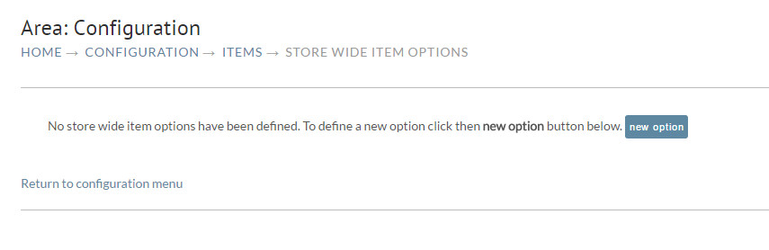
Main Menu → Configuration → Items → Store Wide Item Options
Creating a Store-Wide Item Option
This tutorial guides you through the process of creating a new store-wide item option that can be reused across multiple items in your UltraCart catalog.
Prerequisites
Access to the UltraCart dashboard with permissions to edit Item Management configuration.
Step-by-Step Instructions
Step 1: Navigate to Store-Wide Item Options
From the Main Menu, navigate to the section for defining store-wide options (e.g., Item Management → Store-Wide Options or Configuration → Item Options).
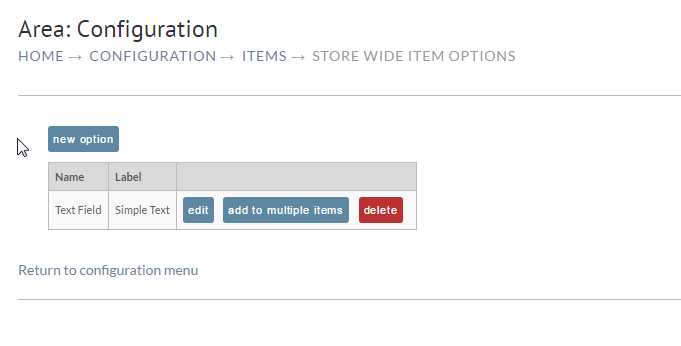
You will see a list of any existing store-wide options.
Step 2: Create a New Option
Click the New Option button.
Step 3: Define the Option Details
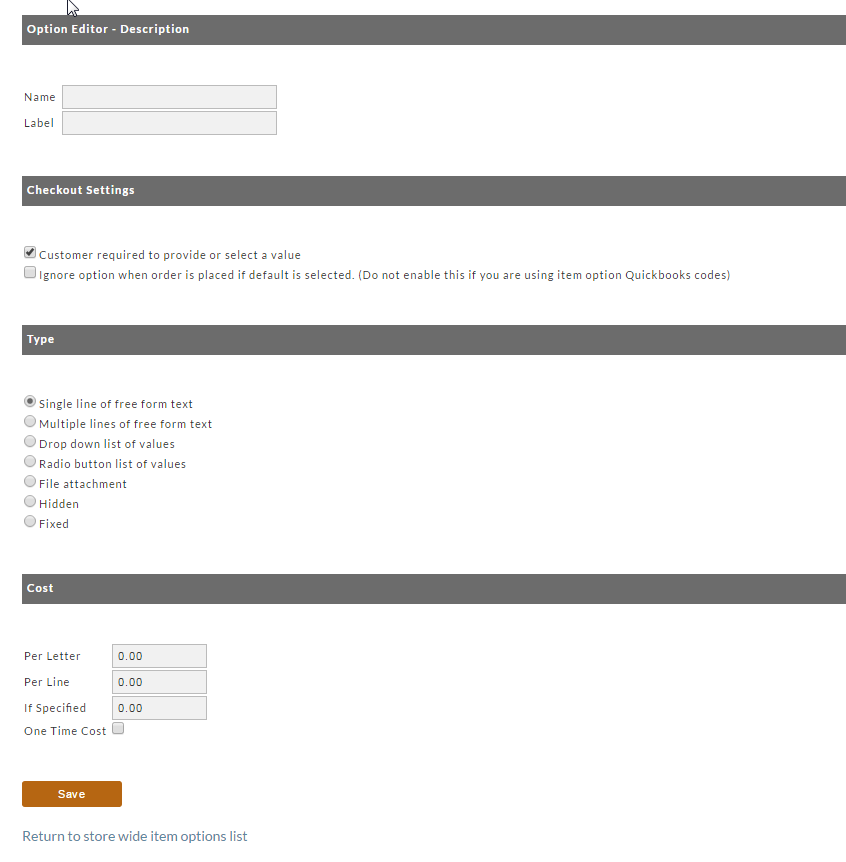
Upon clicking New Option, you will be taken to the Option Editor screen.
Note: This is the identical screen used for configuring options on individual items, ensuring a consistent and familiar user interface.
Option Name: Enter a descriptive name for the option (e.g.,
Color,T-Shirt Size,Material Grade).Option Type: Select the display type (e.g., Dropdown, Radio Buttons, Text Field).
Values: Enter the specific choices available for this option (e.g.,
Red,Blue,Greenfor theColoroption).Adjustments: Configure any cost or pricing adjustments associated with selecting a specific option value (e.g., a
$5.00surcharge for theXLsize option).Configure any other settings, such as inventory tracking or selection behavior.
Click Save to create the new store-wide option.
Step 4: Associate the Option with Items
Once the option is created, you can associate it with any item in your catalog via the individual Item Editor screen. The item will automatically inherit all the values and settings defined in the store-wide option.
Add to Multiple Items
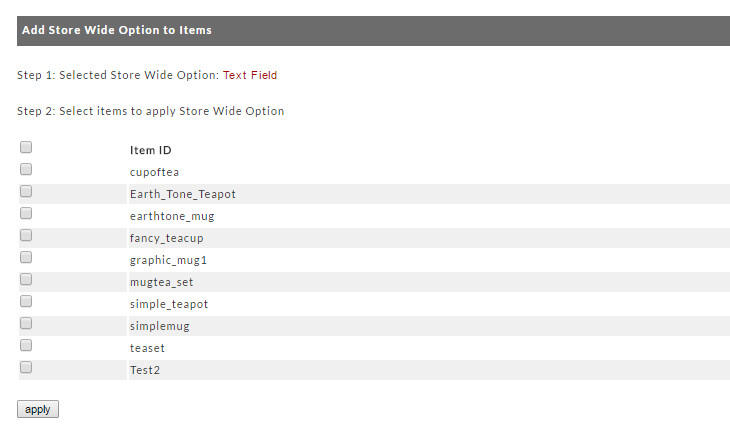
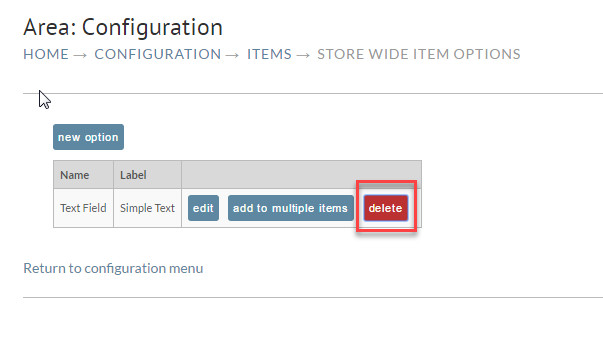
After creating a storewide item option it can then be associated with multiple items. Clicking the "add to multiple items" button will bring up a list of all the store items the merchant has configured.
Click the check boxes to the left of the Item ID desired. A checkbox is provided at the top of the list to "select all". Click the "apply" button when finished selecting your items to associate the option with each of the items. You will be returned to the previous screen.
Deleting
To delete a storewide option, click the "delete" to the right of the option and then click OK to confirm. Deleting a store wide option will remove it from all the associated items.